Showing posts with label #PowerApps. Show all posts

Wednesday, May 31, 2023

Azure DevOps Pipelines with Power Platform - Part-1 The Benefits

In today's fast-paced world, organizations need secure, efficient and reliable tools to streamline their software development processes. Microsoft's Power Platform has emerged as a leading low-code development platform, empowering businesses to rapidly build custom applications, automate workflows, and analyze data. To further enhance productivity and collaboration, integrating Azure DevOps Pipelines with Power Platform offers a powerful combined solution. In this blog, I will explain the benefits of using Azure DevOps Pipelines in conjunction with the Power Platform to optimize your #PowerPlatform development projects.

1.            What is Azure DevOps Pipelines? Azure DevOps Pipelines is a cloud-based service that enables you to create, test, and deploy applications with speed and efficiency. It provides a robust set of tools for continuous integration, continuous delivery (CI/CD), and release management. By incorporating Azure DevOps Pipelines into your Power Platform projects, you can automate build, test, and deployment processes, ensuring consistent and reliable software delivery.

ADO Pipeline monitoring in Power Apps


2.            Key Benefits of Azure DevOps Pipelines for Power Platform:

a. Seamless Integration: Azure DevOps Pipelines seamlessly integrates with Power Platform, offering a unified environment for managing the entire application lifecycle. From version control and code collaboration to automated deployment and monitoring, all development stages can be orchestrated within a single platform.

b. CI/CD Automation: By configuring continuous integration and continuous deployment pipelines, you can automate the process of building, testing, and deploying Power Platform solutions. This not only saves time but also reduces human errors, ensuring consistent quality throughout the development lifecycle.

c. Version Control and Collaboration: Azure DevOps Pipelines provides version control capabilities, allowing multiple developers to work on the same Power Platform solution concurrently. With features like branching, merging, and pull requests, you can manage code changes effectively and promote collaboration among team members.

d. Agile Project Management: Azure DevOps Pipelines integrates seamlessly with Azure Boards, enabling you to manage and track work items, backlog, sprints, and project progress effectively. This integration ensures that the development process aligns with Agile methodologies, facilitating transparent communication and enhanced project visibility.

e. Extensive Library of Tasks: Azure DevOps Pipelines offers an extensive library of pre-built tasks that can be easily customized and configured to meet the specific requirements of your Power Platform projects. From environment provisioning and solution packaging to testing and deployment, these tasks provide a comprehensive set of tools for efficient project management.

I hope this blog helps you understand the benefits of leveraging ADO Pipelines with #PowerPlatform. In my next blog I will write more about how to use ADO Pipelines and #PowerPlatform better together.

Thanks for reading

@mihircrm

365WithoutCode

Friday, September 30, 2022

Enhancing legacy ERP systems with Microsoft Power Platform

On-premise ERP Systems have been the default system of record for the past 30+ years. They are the legacy systems used by millions of business globally which are running strong but lack modern technology. Organizations can find it difficult to improve their business processes and user experience without upgrading or moving the systems to a new cloud-based ERP application like Microsoft Dynamics 365. Organizations may also have challenges finding the necessary talent to incorporate complex AI / ML with their existing on-premise legacy apps. 

One option is to use Microsoft Power Platform to enhance the legacy ERP experience. Microsoft Power Platform is a low code application platform (LCAP) that provides multiple components (refer below figure) to use with existing system of records and add new technological capabilities. This blog discusses some of the business process automation that can be enabled by Microsoft Power Platform.


      #1 - Order to invoice process – Consider the scenario of a order to invoice business process. Typically, a customer sales order is received from website or email as an attachment and entered into the CRM or ERP system. This leads to the user creating a purchase order in the legacy ERP system to procure materials or products from the supplier. Supplier processes the PO and ships the products to the Customer (drop ship). Supplier sends packing slip and invoice to the business.  The business user invoices the customer. In a legacy ERP system, this can be a very manual, error prone and time-consuming process as the volume of orders increases.  


Order to Invoice process

This process can be automated and here are some scenarios where Microsoft Power Platform can be used along with the legacy ERP application.

  1. Automate Order Entry – Using Power Automate the entering of the order from email or as an attachment can be enabled. Power Automate cloud flow can trigger AI builder to scan and read the email attachment and capture the items that are ordered by the Customer. The cloud flow can trigger a Power Automate Desktop flow to enter the ordered items in the Legacy ERP system.
  2. Automate Vendor Invoice entry – As above the Power Automate can also be used to automate the vendor invoice entry into the legacy ERP system.
  3. Email to Customer – Power Automate can be used to trigger an order delivery email to the Customer when a Packing Slip is received from the Vendor.

There are many such use cases that can be automated using Microsoft Power Platform. An example of utilizing Microsoft Power Platform along with SAP CRM and SAP ERP applications is also shown below.


In this example Azure Data Factory is used to get data from SAP CRM and into Azure SQL. Then Power Automate flow and AI Builder is triggered to complete the automation.

Some other examples of using Microsoft Power Platform are also discussed below. 

#2 - Customer Chat-bot - Power Virtual Agent can be used on the Portal to answer queries from Customer. Customer goes to the Portal and want to know the status of the order. Power Virtual Agent can be enabled to trigger a Power Automate Flow to query the database and get status of the order and provide the information to the Customer. The Chat-bot capability can also be enabled to assist in answering queries on product inventory and pricing.

#3 - Gain business insights – Power BI can be used to develop visuals and dashboards to gain insights from business data. Power BI can connect to legacy on-premise systems using the data gateway. Power BI Desktop can be used to develop powerful visuals dashboards. Power BI can help empower business users to work with the data, model complex business scenarios and get insights they need to take actions and business decisions.   

Microsoft Power Platform as a low code app platform can help to empower your employees to do more with your existing legacy applications. Hope this makes you to try one of the Power Platform products. Do let me know about your experience using Microsoft Power Platform with your existing legacy applications.

Thanks for reading.

365WithoutCode     

@mihircrm


Friday, April 29, 2022

AI and Power Platform - Part -2 - AI Builder

 This is a continuation of my series on AI with Power Platform. Part-1 was on AI with(in) Power BI and this blog is about AI Builder.  As Apps are getting created for every possible business scenario there is also a demand for infusing AI in your Enterprise Apps. 

    Within the Microsoft Power Platform the easiest way to add AI to your Power Apps is by using AI Builder. AI Builder works with Power Automate and can instantly enhance your application by adding AI processing capabilities with your data. You can also choose to add AI capabilities using Azure AI, but if you are using Power Platform - a Low Code Platform App why not use AI Builder.

One of the main reason why you may want to use AI in your Apps is because today AI is a necessity not a luxury -  (Microsoft blog).  I am not saying every App needs AI, but it makes a big difference when you add AI capabilities within your Apps.

So how to get started with AI using AI Builder? It is very easy. Select AI Builder from PowerAutomate.com and get your first AI builder model created. Here are some things you may want to consider. 

AI Builder in Power Automate

1. Know the Business scenario that your App serves - Does you app process Customer application? Does it to Accounts Payable - Invoice processing? Is your app collecting Customer feedback? Based on that you can select the AI Model. 

Fig-1 Business Scenario


2. AI Model - Currently there are 17 AI builder model type and the list is growing every few months. It is important to select the right model type based on your business scenario. They range from forms processing, Prediction, Sentiment Analysis to Text Recognition. Every model is focused on one particular aspect of Business scenario. 

There are basically 2 types of model Builds and it is important to understand the differences between the same. 

Model Build

Pre-Built Model

Custom Model

Application

Generic Use Case found common across Businesses and Industries

Custom – For your specific Business Use Case

Customizable

No

Yes

# of models

11 Pre-built models

6 Custom Models

Training needed?

No

Yes


3. Collect the needed Data - Every model needs certain type of Data as Input to the model. The correct Data type has to be identified. You have to be diligent in knowing all possible variations and collect enough samples of each variation needed for the Custom model to be trained. There are 4 main data types as shown below. 


When collecting the Data for training the model it is important and necessary to understand the following 2 AI Integrity concepts to build a Trusted AI model. 

3.1    Bias - Bias in AI occurs when model gives a preferential treatment to certain privileged groups. AI models can become biased and that can have serious business implications. This can be because of the data that was used to train the model was not an accurate sample or had introduced the bias. So it is important to test the data and results of AI for any bias. (Refer IBM Blog)

3.2 Drift -  Drift can occur when AI models are faced with a different sets of data than what they were trained with. This can degrade the accuracy of the AI Model over time. (Refer IBM Blog)

 4. Train the Model - Every Custom model needs to be trained. Training is the critical part of AI Builder and if you do it wrong you will regret later. This reminds me of the movie - How To Train Your Dragon which can pretty much sum up as what to expect when you do not care for training your Model (Dragon). As you are training the model check for any possible Bias or Drift scenarios.

Train your AI Model

Training the model can take time based on the variation in the type of data. There is also a minimum # of sample data that may be required and recommended for training the model.

Train model

5. Manage the Model - Once the model is trained you need to manage and maintain it. AI Builder provides a snapshot of the model accuracy and confidence. If there is a degradation on the accuracy you may want to re-train the model with a fresh dataset. Make sure to test the model after every training.

Model performance

6. Deploy the AI model -  You will need to publish the model than you can use with Power Automate or Power Apps

6.1 Power Automate - You can use the model in a Power Automate flow. For example a Forms processing model can be referenced in the flow and the data can be extracted from the model and send for example via email. 

Extract data from invoice and send email

6.2 Power Apps - You can use AI Builder in 2 ways with Power Apps - 

        1. Use AI model in the Formula Bar - Example adding the Sentiment analyzed from a Text 

        2. Add AI Builder components to the App 

Add components

Things to note - 

1. AI Builder model is solution aware and can be added to the solutions. This is great for ALM.

2. Data Loss Prevention (DLP) rules also apply to AI Builder.

3. You can also do "Bring your own AI model" using Azure Machine Learning (AML) models.

Hope this helps you to get started with AI Builder and automate your tasks or generate insights. With a easy to build, low code application platform there is no reason why your App cannot have AI built in it. 

Let me know your experience in using AI Builder in your app and thanks for reading.

@MihirCRM

365WithoutCode


Monday, February 28, 2022

Industry Cloud solutions using Dynamics 365 and Power Platform

As Cloud applications are now the global standard, there is a demand for building vertical industry specific cloud solutions that provide pre-built insights and intelligence, business processes and relevant experiences for the industry. Microsoft has introduced multiple Industry Cloud with Dynamics 365 solutions. This blog is to introduce the Industry Clouds solutions from Microsoft built on the Microsoft Dynamics 365 and Microsoft Power Platform.

Currently there are 4 Industry Cloud solutions available and I am sure Microsoft is working on few more in the pipeline. They are as below.

  • Microsoft Cloud for Financial Services
  • Microsoft Cloud for Healthcare
  • Microsoft Cloud for Retail
  • Microsoft Cloud for Nonprofit

Each Industry Cloud has the following - 

1. Industry specific functionality - For example the Financial Services Cloud consists of the following -

A unified Customer Profile (Customer 360) app, Customer Onboarding app, Loan Management app  Customer Engagement app etc.. The Industry apps provide tailored experiences for both the users and Customers. They help in better collaboration and decision making.

Microsoft Cloud for Financial Services 


2.  Each Industry Cloud includes specific components - Solutions, Apps, Templates and Services. It also includes data model built for the Industry Cloud. The data model can also be installed as a stand alone solution. For example The Retail Banking data model.

3. A Compliance program for Microsoft Cloud which enables the Clients to measure and control Risks and manage Industry compliance. This also includes specific architectural templates to help in designing and deploying Microsoft Cloud solutions for the specific Industry. An example for Financial Services Cloud Architectural template is shown below.


There is certain requirements that needs to be followed.

1. You need to have the specific licenses before you can deploy the Industry Clouds. 

2. There are pre-requisite that needs to be completed and after the Industry Cloud solutions are deployed there are also post deployment steps to be followed. 

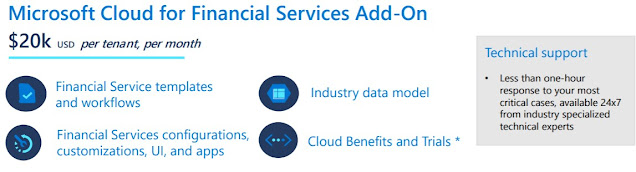
3. Pricing - Each industry Cloud has a specific pricing template. The price for Financial Services Industry Cloud is approx $20k per Tenant. If you have 1000+ users this is a very reasonable (imho) price for the OOTB functionalities that the Industry Cloud provides.

Pricing for Financial Services Cloud

I would recommend to first do an internal analysis on the business processes and perform a proof of concept testing of the Industry Cloud solution. 

The Microsoft Industry Cloud are great examples of how to best utilize Microsoft cloud apps for your specific Industry. They come pre-built with the data model, AI apps and solutions that you can easily test and deploy. I am certain this will help accelerate your cloud transformation journey. 

In my future blogs I will explore some of the Industry Clouds and write more about it. Thank you for reading and let me know about your experience with the Microsoft Industry Cloud.

@mihircrm

365WithoutCode

Friday, December 31, 2021

Making your digital transformation a successful journey with an Enterprise App Adoption Strategy

 Many organizations have embarked on their digital transformation journey with new cloud native enterprise apps like Microsoft Dynamics 365 or Power Platform. They want to ensure that they are able to achieve the goals initially set for the new business app and also get a return on their investments. Planning and preparing a enterprise app adoption strategy is essential for the operational success and future of the business. 

The enterprise transformation journey may have started as a pilot project. In an agile driven world the pilot may be implemented in a particular country / region or for a department to test the results of implementing the new app. The successful adoption of the new app will determine the next steps in the journey for the eventual implementation in the enterprise. It is at this critical juncture that the adoption playbook needs to be run to ensure the success of the project. 

As organizations venture into new cloud native apps there are many challenges. 

1. Technological change - Cloud apps are new technologies and are constantly evolving. This was not the case earlier when the on premise legacy enterprise apps rarely had changes and had worked pretty much the same for the past 10-15 years. The new cloud apps will change periodically months and will need a constant learning culture for the business.

2. Business environment change - As the past 2 years have shown "business as usual" cannot be taken for granted. The business environment can change any time, many of us could be working from where ever and still supporting our customers. We need to be ready for future business environment changes. Successful adoptions of the new apps are necessary fir business to thrive in new digital world.  

3. Employees needs change and the enterprise needs to be agile to provide the support needed for the employees. Employees want proper guidance and nurturing in the new apps they have to use. They want to be trained and empowered for success. When organizations do not support their employees with the new tools and training needed, the digital transformation may not be a success.

The above are some of the factors that an Enterprise App Adoption Strategy is required. 

Microsoft has provided a Dynamics 365 Adoption guide that can help customers implementing Dynamics 365 to have a successful application adoption. The below pic shows some of the highlights in the Microsoft Dynamics 365 App adoption guide. (link


The Enterprise App Adoption Strategy should also change, be relevant and useful as future enhancements are made to the app.  The focus is on making sure the employees adopt and customers are engaged and the app is getting better business outcomes.  Hope you have an Enterprise App Adoption Strategy and do let me know your thoughts on it,

Thanks for reading. 

@mihircrm

365WithoutCode

Wednesday, June 30, 2021

Measuring Customer Experience with Dynamics 365 Customer Voice

"What you cannot measure you cannot improve" - I think you will agree to this statement. If you want to improve your customer experience than first you need to know how to measure it. Once you measure it than you can track and take action from your insights to improve customer experience.

Customer Experience is about how the customer feels after having an interaction with your business. The interaction can be of 3 main types
1. Products - You want to know how the customer feels after purchasing and using your product. 
2. Services - If you are selling services, how the customer felt after the service was delivered. Like automotive maintenance service
3. Processes -  How was the customer online buying process experience or experience with the case resolution process.

An enterprise may want to know all 3 of the above and get valuable feedback from the Customer. If you have large number of products and thousands of customers globally you need to have a Enterprise Feedback management system like Dynamics 365 #CustomerVoice. 

I have written 2 blogs earlier about Microsoft Dynamics 365 - Customer Voice. My blog-1 gives an overview about Customer Voice and blog-2 is about considerations when deploying #CustomerVoice.
This blog is about how to measure your Enterprise Customer Experience using #CustomerVoice.

Measuring of Customer Experience is done using Satisfaction Metrics. The metrics are mapped to questions in the Survey. As the survey responses come in Customer Voice services sends the responses to Azure Cognitive services for analysis and also to the Customer Voice analytics engine. After the analysis is done the results are stores in Dataverse. 
Response analysis

There are 4 types of Satisfaction metrics that you can use. 
Satisfaction metrics


1. CSAT or Customer satisfaction is measured by responses to rating type questions in survey and is normalized to a range of 1-5. The below are example of CSAT survey questions.
CSAT question types


2. NPS or Net Promote Score is a metric used to measure customer loyalty. It is based on NPS type questions with scale 0-10 as shown below. 
NPS questions

Customer voice will group the respondents as follows 
    i.   Detractors = response from 0-6 rating
    ii.  Passive = responses with 7 or 8 rating
    iii.  Promotes = responses with 9 or 10 rating 
The NPS is a number calculated using the formula 
NPS = (% of Promoters) - (% of Detractors) 
NPS can range from -100 (100% detractors) to 100 (100% Promoters).

3. Sentiment - this identifies how the customer feels about a product, service or process. This is done using a text based question response. Sentiment will group the response based on the text as positive, negative or neutral. 

4. Custom Score - You may want to have a custom scoring of the question in a Survey. The custom score allows you to assign a point value to the answer options. Based on the response the score is calculated and assigned to the Survey.  This can help you to add more weightage to certain question answers and thus get an custom measurement of the respondents satisfaction level.

Custom Score

As you are planning and designing the questionnaire make sure that you understand how the customer experience can be measured so you have the right insights. In my next blog I will discuss about tracking and actionable insights.

I hope this helps you in improving your enterprise customer experience with #CustomerVoice. Thanks for reading.

@mihircrm
365WithoutCode

Tuesday, March 23, 2021

Power BI with Power Apps Portals - Part-3

 Portals are now becoming ubiquitous as a Customer / Partner / Employee engagement channel. They can provide valuable information to a large audience. There is a need to embed dynamic visualizations, dashboard and reports in a Portal. This is very much possible now using Power Apps and this blog discusses how visuals from Power BI can be embedded into Power Apps Portals.

In my earlier blog I had mentioned about getting started with Power BI and Dynamics 365 Power BI template apps. This is a continuation and Part-3 of the Power BI with Dataverse series of blogs. 

An embedded Power BI dashboard can provide valuable information to the user when logged into the Power Apps Portal. Its great that one can create powerful visualizations but when the visuals drive insights and is showcased to a large # of users the value of the visual increases exponentially for the organization.

Power BI embedded in Power Apps Portals

Assuming you have a Power BI report or dashboard ready and a Power Apps Portal created in the same environment. The following steps will help you embed a Power BI report in Power Apps Portals. 

1. Configure Power Apps Portal

Go to Power Platform Admin Center and select your Portal 

Enable Power BI visuals

Click on Manage Power BI embedded service and select the workspaces that you have the Power BI reports and dashboards to be shown on the Portal.

Select Workspaces

Now you have configured the Portal for embedding Power BI. While you are on the managing Portal select Portal Details copy the application ID of the Portal. It will be useful in the next step.

Portal App ID

2. Set up Azure AD security group

We will need a Azure security group with the CRM Portal as a member. This security group will be given access to Power BI API. This will enable the display of visuals in the Portal.

Log in to Azure and create a new Security Group in Azure Active Directory. 

Security Group
Add Microsoft CRM Portal as member of the security group. Apply the Portal application ID to the member. 
Add member
Add the above security group to the Power BI Tenant Developer settings as shown below. This will allow the Portal to use Power BI API.
Allow to user Power BI API

Now we have completed most of the setup required. Next step is to configure the Portal and add the Power BI report and or dashboard to the Portal.

3. Embed Power BI visual in the Portal

Go to make.powerapps.com and select your portal and click on edit. This will open the Power Apps Portal Studio.
Here you can select to add a new page to the Portal or add a section to an existing page to display the Power BI visual.
One of the components you can add to a page or section is Power BI.
Add Power BI component

Once the component is added you will get the options to select the Workspace > Dashboard or Report to add to the Portal.
Add Power BI visuals as component

Things to note -
1. Users who log in to the Portal will need to be authenticated using AAD. 
2. Users will need Power BI license to view the visual
3. The Power BI dashboard or report will need to be shared with the user

I hope the above was helpful in embedding Power BI visualizations in to your Power Apps portals. Let me know if you have embedded Power BI in your Portal or custom websites.

Thank you

@mihircrm
365WithoutCode