Wednesday, February 27, 2019

Whats New in April 19' update - Omni Channel Engagement Hub

This blog is part-1 of a series of blog on what I find is new and interesting in the April-19 update of Dynamics 365 Customer Engagement.
Microsoft has provided a list of updated and new features in the April 2019 update release notes. I had written earlier about the Sales AI capabilities in Dynamics 365. This blog focus is on Customer Service and specifically the very new upcoming feature called Omni Channel Engagement Hub.

As the medium of social network is increasing, customers are demanding to communicate, connect and get response from organizations on any channel and from any device / location / time. This has challenged organizations big and small leading to a new breed of apps that help connecting with customers on non-traditional channels.

The challenge here is to integrate the new communication channels with existing Enterprise systems of engagement.

Microsoft has taken cognizance of this phenomenon and has introduced the Omni Channel Engagement Hub, which is a cloud based service to enable organizations to instantly connect and engage with their customers via channels like Live Chat and SMS. And there is an Dynamics 365 app, which helps Customer Service Agents to respond and engage with customers using those channels.

Agents can utilize the omni-channel Engagement Hub via Dynamics 365 online using the Unified Interface or by using Unified Service Desk (USD)

USD has the integration to the existing telephony system for Call Center operations. As the channels are new and not limited to just phone calls, it will now become a Contact Center operation.

There is built in dashboard for Supervisors to track and monitor the contact center productivity KPI's, Additionally Supervisors can consult and assist customer service agents in issue resolution.

With the April-19 release organization will be able to create their own chat bots which will be part of the Customer Service Virtual Agents using Microsoft Bot Framework.

The Omni Channel Hub integrates with D365 Customer Service Virtual Agent (Chat Bots). CS Virtual Agent will allow routing incoming chat requests to Virtual Agents (Chat Bots) in case of peak loads. If there is a necessity for escalation the discussion can be routed to a human agent with all prior details about the chat with customer.

Virtual Agent (Chat Bot)


So to give you a better idea for above - Consider a scenario
A bank is using Dynamics 365 Customer Service with the Omni Channel Engagement Hub and Virtual Agents (Chat Bots) it has created.
If a customer wants any information they can search the knowledge base as self service.
If they need further help they will be able to have a chat with the customer service virtual agent - the Chat Bot. Chat bot will use the data from Knowledge Articles created from similar cases to provide the information needed. If additional help is needed the discussion can be routed to a human agents queue giving the customer a seamless experience.

Routing of Chat 
I hope you are as excited as I am to get my hands on creating chat bots in Dynamics 365 without any code and transforming the customer experience. This is currently scheduled to be available in preview @ April 19'. We may just need to wait till it is out of preview and general available. Till than keep reading.

Mihir Shah
365WithoutCode


Saturday, February 2, 2019

Set-up AI for Sales with Dynamics 365 - II

This is part II of my blogs on Dynamics 365 AI. In part-1 I wrote about how you can increase your Sales by using Dynamics 365 AI for Sales. This blog is about setting up AI for Sales. There may be some challenges in installing AI for Sales and I hope this blog helps you to simplify the process.

Follow the steps below to set-up AI for Sales in a trial environment.

1. Trial environments & licenses - I created a trial environment for Dynamics 365 which provided Office 365. Also added the following trial licenses to my Office 365 subscription.
Trial licenses


As I mentioned in my earlier blog, AI for Sales is a different application and needs a separate license. It is important to have the right licenses in place before you can do any set-up for AI for Sales. Assign the above licenses to the admin user.

2. Install Sales Insights add-on -
Once the license is assigned to the admin user you can log into Dynamics 365 as the admin user. Go to Settings > Sales AI and select Get it Now.

Get AI for Sales
You can also install from the admin portal.
In Office 365 go to Admin portal  > Dynamics 365 admin center and select your instance. Go to configure solutions as shown below. Add the sales insights add on solution. You will need to wait for the Sale insights add on install to be completed.

Add Sales Insight solution
You can check the install status of the Sales Insight add-on as shown below.
Installed
 You will need to go back to Dynamics 365 > Sales AI and provide permissions for external systems (Azure ML) to access the user data for AI for Sales App as shown below.
Permissions needed
I also got an update notification which basically required me to re-install the app again - refer below.

Update notification
App install

Once the app is installed you will see the following on Sales AI - 

Ready to configure


3. Configure Sales AI - Now that the solution is installed you are ready to configure AI for Sales. 
In Dynamics 365 go to Settings > Sales AI > Overview > Dynamics 365 AI for Sales.
Here you will be able to configure the following and also note the required data for set-up.

3.1 Relationship analytics - Requires access to data in Exchange online. 

Relationship Analytics
3.2 Predictive Lead Scoring - Requires 100 qualified and 1000 disqualified leads for model creation.
I created a sample 1100+ leads data and imported them to create the lead prediction model. (If you need this sample data for testing, do connect with me on LinkedIn or twitter @mihircrm and i can provide the same)

Lead model creation

After few hours the lead prediction model was created by AI for Sales

Lead prediction model
As you can see the model is categorizing the leads in 4 buckets (A,B,C & D) with a scale from 0-100. You can manually configure the scale if needed. If there is a new set of data that was imported you can even retrain the model. Over a period of time as new leads are generated, rejected or qualified it may be a good idea to check the veracity of the model.

3.3 Predictive Opportunity Scoring - This requires 400 qualified and 600 disqualified opportunities to create a model.

4. Error handling - As I was doing the initial testing on model creation I sometimes got the following error message. 

Error in model creation
You may stumble upon this error and there is a workaround for it. You can go to advanced find and do a search on records for LeadModelConfig entity. 

Lead Model Config

Delete the records in the LeadModelConfig and this will allow you to  re-run the model creation.

Delete

I hope this walk through help you in setting up Dynamics 365 AI for Sales. In my next blog I will write about the Dynamics 365 AI for Sales app. Do let me know about your experience with AI for Sales and keep reading.

Mihir Shah
365WithoutCode


Saturday, January 19, 2019

Increase Sales with Dynamics 365 AI for Sales - Part-1


This is part-1 of my blog series on AI with Dynamics 365. In my earlier blog I discussed about the need for systems of intelligence and how Microsoft has introduced a suite of AI apps with Dynamics 365. This blog is on Dynamics 365 AI for Sales.

Enterprise clients want a healthy sales pipeline with motivated sales force. It is vital to provide all necessary tools for the sales person, to be able to focus on the right leads and opportunities and close sales faster to deliver on sales targets. Dynamics 365 AI for Sales aims to do just that –
·       Help increase Sales – Business management
·       Analyze sales team performance – Team management
·       Get insights on Customer interaction – Call Intelligence

Dynamics 365 AI for Sales
Why use Dynamics 365 AI for Sales? – Large enterprises gets 1000’s of leads and opportunities from different channels and sources. They are all collected, cleansed and fed into a sales management system like Dynamics 365. The plethora of leads and opportunities can become overwhelming for a sales person, and it becomes difficult for the Sales team to focus their efforts on the important lead or opportunity and build the right customer relationship. 

Predictive Modelling - using Azure ML

Dynamics AI for Sales removes the manual guess work out of the Sales persons hand. It analyses the data within Dynamics 365 and Office 365 (exchange). It than uses Azure machine learning to creates a predictive model that scores and categorizes the leads and opportunities and identifies trends on a real time basis.
This provides indicators for the Sales team to identify the right lead and opportunity to meet their Sales goals.

Identifying trends

With the right information on the Opportunity or Lead such as the score, grade & trend is improving or declining – the Sales person and team can than work on it and get it to close faster. This will help increase the Lead qualification and Opportunity close rate and improving the overall business.

Initial observations –

  1.       Dynamics 365 AI for Sales only works with data from Dynamics 365. So if you need to integrate data from multiple systems outside Dynamics 365 it may not be feasible.
  2.        Requires a separate license and it is a different app. Users may not want to log into to multiple App. Though the data is also shown in Dynamics 365 – like the Lead / Opportunity scoring, grading and trends. But the AI app has some cool visualizations for management.
  3.       It currently only collects data from the OOTB Sales entities – Leads, Opportunities, Goals etc. If you are using custom entities than they will not be used for the predictive modelling. Also if you are not using OOTB entities like Goals the app may not be that useful.
  4.       The models cannot be customized as provided by AML. 

      Considering this is still in preview & version 1.0, I would expect it to only improve over time. My thoughts are, this is a good way of proving how you can integrate Dynamics 365, Office 365 & Azure ML and make an AI app to help the organization do more.

To achieve the above is not an easy task and needs understanding of the organization sales business process and Dynamics 365 Sales integration. Systems of intelligence cannot be built overnight and needs the underlying data from systems of engagement and systems of records. 

I hope this gives you a brief idea of the upcoming capabilities of Dynamics 365 AI for Sales. In my next blog I will write more about the implementation of Dynamics 365 AI for Sales. Keep reading.

Mihir Shah
365WithoutCode

Friday, November 30, 2018

Dynamics 365 AI - Systems of Intelligence

Microsoft has introduced a suite of AI apps with Dynamics 365. This blog talks about Apps for AI as the new systems of intelligence.

Enterprise journey to intelligence -

The earlier enterprise applications were called Systems of Records - This were the Operations , Accounting / finance and HR applications used to record sales transactions, do accounting and process payroll. This formed the traditional ERP business apps.
As the Customer became recognized as King (or Queen for that matter) new Systems of Engagement were created for acquiring, winning and keeping the customer with the business, the CRM apps of Marketing, Sales and Customer Service.
Now that we have had both the Systems of records and Systems of Engagement the need was to combine the data that was collected and gain intellectual insights. Additionally technology has enabled us to train machines (develop algorithms) to recognize patterns in the data, learn and predict possible future outcomes and take actions from the insights thus evolving into AI.  Now we have what is called the Systems of Intelligence in the form of Machine Learning and AI.

Apps in Dynamics 365 -

There are mainly 3 types of applications (or apps) that you can purchase with Dynamics 365 - Business apps, AI apps & Mixed Reality apps. 
The business apps consists of -
1. Customer Engagement - The traditional CRM - Sales / Customer Service and Marketing suite
2. Finance & Operations - ERP suite
3. Retail - Point of Sale solution
4. Talent - HR solution

Dynamics 365 AI

Now Microsoft has added intelligence & made it more interesting by bringing in the Dynamics 365 AI apps
1. AI for Sales
2. AI for Customer Service insights
3. AI for Marketing Insights
The Apps for AI are built to be integrated with the Sales, Marketing and Customer Service apps. They add intelligence to the data collected, stored and processed within the business apps. Integrate the Apps with other Microsoft solutions - Office 365, Power Apps and Power BI... and the possibilities for transforming your business with intelligence becomes very real.

Design for AI -
Looking back when we were designing and developing the Systems of Records the focus was on management & exception reporting to get a 360 view of business. With Systems of Engagement the focus changed to 360 view of the Customer.
Today as you are building new applications for the future - remember to incorporate and design for AI. The Systems of Intelligence will be those that -
1. provide actionable insights
2. are cognitive and self learning
3. reinforce human intelligence

I am assured that the new Dynamics 365 AI apps are the beginning of the Systems of Intelligence and the road ahead is as exciting as it is challenging.

I will write more as I get my hands dirty with the Dynamics 365 apps for AI. Thanks for reading.

Mihir Shah
365WithoutCode


Thursday, November 1, 2018

Integrating Teams with Dynamics 365 - Part-II

This is the 2nd part of my blog on Teams and Dynamics 365. In Part-1, I discussed about Teams and Office 365 apps. This blog will show how to integrate Dynamics 365 Customer Engagement with Teams.

Teams is integrated with Office 365 Apps. Creating a team also creates a SharePoint team site and also an Office 365 group for the team, which can be accessed from Outlook. As discussed in my earlier blog, Team consists of Channels and all communications and collaboration is done within the Channel. You can add a tab to the channel to show records from other Apps like Dynamics 365 and GitHub.

Teams will be useful for users to form groups to discuss, collaborate, share and do meetings together. It helps the team members to have one go to location for all messaging, documents, notes, design and meetings.

For example I have created a Team called Big Deal Opportunity. Within the team is the Bids and proposal Channel. I want to link my channel with the Dynamics Account - Bob the Builder so I have all the up to date info about the Account and Opportunity in  one place where the team is working together for bidding and proposal development.

1. On the channel select the '+' sign to add a Tab. Search for Dynamics and select Dynamics 365 - preview (Note - The Dynamics 365 integration is in preview and needs to be enabled in Dynamics 365 > Settings > Preview tab)

Add an App to Team


2. Select Org and Entity - If you have multiple environments it will ask you to select the Dynamics Org and also the Unified Interface App.

Select Org and App
Note -
1. Only Dynamics 365 v9 and above will work for Team integration
2. Only Unified Interface Apps will work. Not Web Client.

3. Select Entity and Record - The last step is to select the entity (Account) and the record.

Select entity and record
Once you are done a new tab will be added to the Team channel and it show the record in the Tab itself.
Account Tab in Teams

As you can see now the team can get all the info from the Dynamics 365 Account record (or any other record) on to the Team Tab.

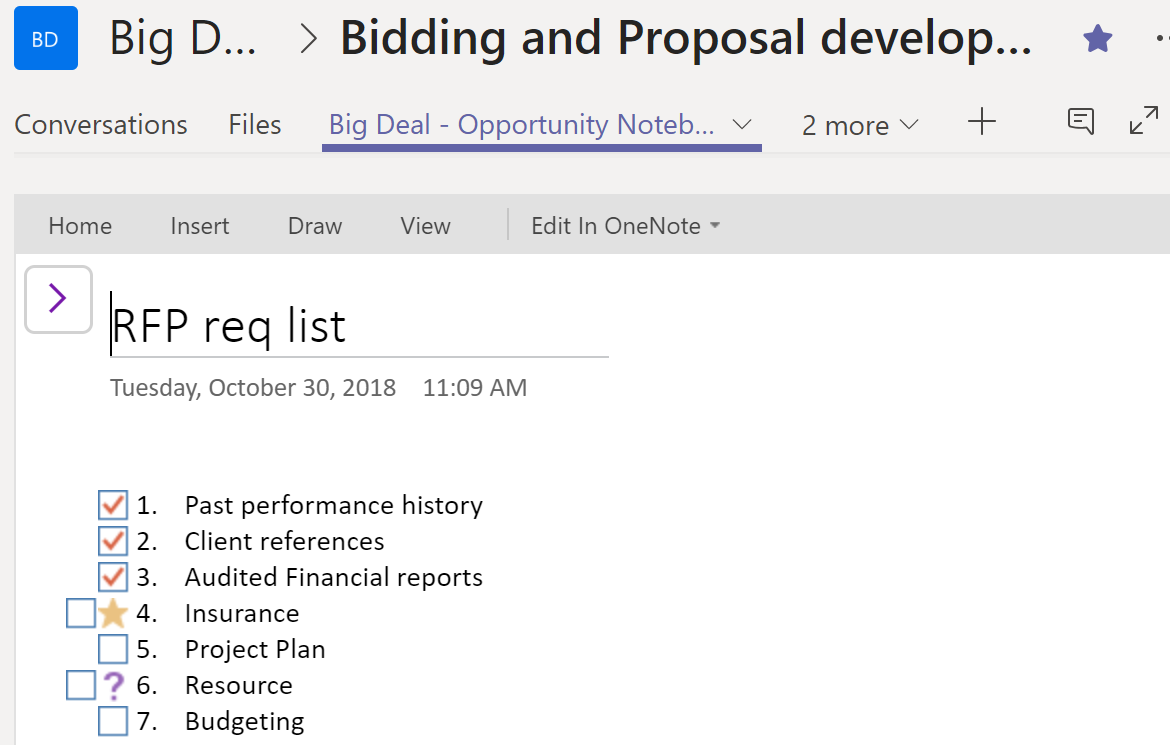
Another good integration for Teams, is with One Note. I added a One Note Tab  on the Channel, which the Team can view and work on as they collaborate.

One Note Tab in Teams
I hope the above help you to integrate Teams with Dynamics 365. Thanks for reading.

Mihir Shah
@mihircrm
365WithoutCode


Tuesday, October 30, 2018

Teams in Office 365 & Dynamics 365 - Part-1


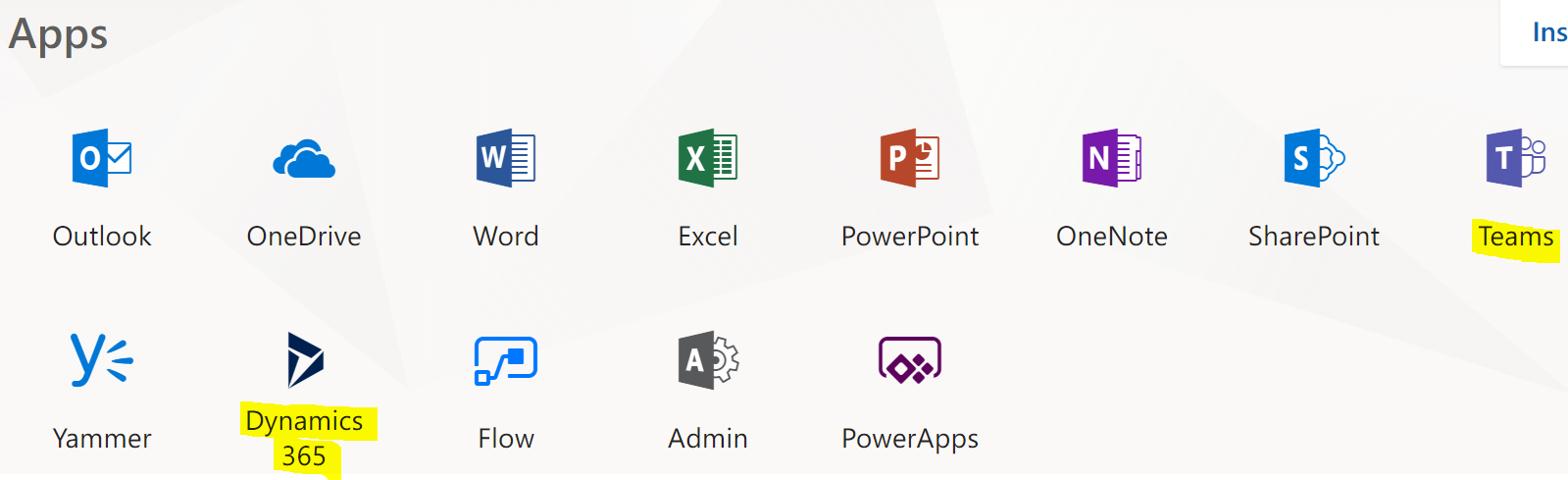
Dynamics 365 online is part of Office 365 family of productivity and collaboration suite. It is well integrated OOTB with many other Office 365 apps such as SharePoint, One Drive, Yammer, One Note and Teams. This multi-series blog is about Teams and its integration with Office 365 Apps and Dynamics 365. Part-1 of this blog focuses on Teams and Office 365 apps.

Apps in Office 365


One important thing to note is that the apps are very much interconnected. You create an Opportunity team in Teams and this will auto create a Opportunity Group in Office 365 with its own email address that you can access from Outlook. This also create an Opportunity SharePoint team site to store and share files. You can add One note, Power BI, Power Apps, Dynamics 365 etc as tabs to the channels within a Team.

About Teams – Teams according to me is one of the best Office 365 app, that can really helpful in improving collaboration and communication within an organization. The below gives you an overview of setting up a team and linking it with other apps. .

  1. Create Teams and Channels -
You can create a public, private or org wide team. A team owner can add members to the team. 


Teams consists of Channels. A general channel is auto created when you create a team. Additional channels can be created as needed. All team users have access to all the Channels within a team. (Channels are not private)

All collaboration takes place within the channels of the team.
In a channel you can start conversations by @mentioning users. Also add attachment files, start audio / video meetings (skype) and more. 
Channel collaboration
2. Chat with other user/s – You can start chat messaging with one or more users. The chats are private to the members in the chat only. 

Team chat

3. Meetings – You can start an instant audio / video meeting from within a channel or chat. The meeting can also be scheduled as shown below. This is a great alternative to having meeting outside Office 365. This also creates a tab for adding meeting notes within the channel. 

Schedule meetings
Hope this blog helps you in getting started with using Teams in Office 365. I will write about the integration with Dynamics 365 and Teams in the Part - II of this blog.

Thanks for reading. Please let me know your experience working with Teams.

Mihir Shah
@mihircrm
https://www.linkedin.com/in/mihircrm/
365WithoutCode


Friday, September 7, 2018

Delivering Dynamics 365 - Agile in Enterprise

This is part-2 of my multi series blog about Delivering Dynamics 365 online (Customer Engagement) in the Enterprise. In my earlier blog (Part-1) I have written about Enterprise Design Thinking. This blog focuses on using Agile to deliver Dynamics 365 in the enterprise. The thoughts below are from my experience in design and delivery of Microsoft Dynamics solutions for Enterprise clients using Agile and my learning from IBM Agile academy.

Continuing from my earlier blog, Enterprise design thinking helps in selecting the right project based on user outcomes, Agile helps in delivering the project right for the user outcomes.


1. What is NOT Agile ? - I think there are many books and research out there to talk about what is Agile so I would like to start by discussing "What is NOT agile ?" 
Many years ago when I started with agile delivery I had the feeling that Agile was more like the "6 blind men and elephant story". 
What is NOT Agile ?

If anyone has felt like this on an Agile project than you know what i am talking about and this is NOT Agile. Especially on an Enterprise project where there are multiple teams, with unique expertise like - business, BA, design, Dev, QA, Performance, UAT.., working in different parts of the world brought together to deliver, doing Agile becomes a challenge. And yet, it is possible to be successful - as Agile is a team mindset when working together. It requires certain process and simple rules to be adhered to (I will discuss some below). In an Agile project everyone has a mutual understanding of the desired user outcome. 

Another important concept is the Minimum Viable Product (MVP) - delivering value to the user in an iterative process. This is the prototype approach to delivering. Microsoft Dynamics 365 provides a ready to deliver platform (with Power Apps, Power BI, Flow etc.) which can help in creating an MVP prototype in days. The team can than using, Agile methodology, iteratively build on the prototype to meet and exceed user outcomes.
MVP using Dynamics 365


2. Flavors of Agile - All enterprise clients I worked with, have a unique understanding and would like to implement Agile in their specific way.   I call it the different flavors of Agile. No matter what flavor it is, there should be a common understanding of the reason why Agile is selected as a methodology.
Sometimes it is just a name which is given to the existing mashup process and there is no intention for being agile. If the top management has a clear directive to all employees to use agile and the team members are trained on Agile, it is well understood and accepted. Agile is a mindset that needs to be embraced by the enterprise.

3. The soft(er) values of Agile - As per IBM Agile academy, the values in Agile guide how we, as a team relate to each other, the values are – Trust, Respect, Openness, Courage and Empathy. The values are to be taken seriously and applied in every action of the project. The team (consisting of Client and Consultants) should have mutual respect and trust each other. If a team does not have the right values,  the project implementation becomes a challenge and instead of getting together the team gets divided and may disrupt the project.

4. Agile principles - IBM Agile academy also provides certain principles to guide the team. The 3 principles of Agile are
  • Clarity of outcome
  • Iteration over perfection
  • Self directed teams
I will discuss each of the principles below and add my project experience. It is important that each team member understand & adhere to the principles in the Project.

5. Clarity of outcome – This is to be clearly defined for the project team and this may be documented in the project charter / SOW. The SOW is used by implementation team as the bible / guide for the project. If there is an ambiguity in the SOW it can lead to confusion and difference in expectations. If the project team is not following the SOW, it needs to be highlighted and understood. Many Dynamics 365 project have not succeeded because of the lack of clarity due to not involving users in the entire process.

6. Iteration over perfection – In agile the goal is continuous improvement. After each iteration the team improves working together, the process is better understood and the velocity increases over time. So do not expect the team to be perfect from day 1. In one of my Microsoft Dynamics 365 agile project, our team velocity increased from 100 points in the initial Sprint to 300 points in the end of the Project phase. The first software delivered is an MVP and also every delivery is a prototype that will be improved upon in the next Sprint iteration. 

7. Self directed teams – Teams need to be empowered to take decisions. Once the team members know that they have the power to contribute and make group decisions, the team is motivated and does the necessary actions to complete the work. 
If you see something, say something

Team empowerment is a very powerful principle of Agile. This requires the team members to actively participate and have the courage and be allowed to speak up during agile meetings. It is vital to call out and fix an issue in the earlier stages of development than when it is found in Production.

I hope the above gives you a taste of Agile and would love to hear about your experiences in delivering Dynamics 365 using Agile.

Mihir Shah
Twitter - @mihircrm
LinkedIn - https://www.linkedin.com/in/mihircrm/