In this blog we will set-up and configure Queue in Azure Service Bus to receive messages from Dynamics 365.
Queue is an entity within the Azure Service Bus which is used to store messages.
Benefits of using Queues in Azure -
1. Queues acts as an intermediary to communicate between 2 different systems.
2. It decouples the 2 systems - The sender can send messages and receiver can receive messages without them running at the same time.
3. Like a distribution center it receives products (messages) and sends to one or many systems. Note - each message can be received only by 1 receiving system.
4. Useful for batch and mobile applications
Consider a scenario - You wan to send data from Dynamics 365 to other line of business applications on the occurrence of an event in Dynamics 365. For example – when an Opportunity or an Order is created in Dynamics 365 Customer Engagement online, the details is to be sent to an on premise LOB application - like an ERP system.

In order to enable this the following is needed.
- Azure subscription with Azure Service Bus and Queue
- Service end point registration in Plugin Reg tool in Dynamics 365 to post to Azure
- Set-up the LOB Application to listen to Azure. (Not covered in this blog)
The following diagram provides an overview of a Dynamics 365 to 3rd Party application using Azure. (Ref-1)

The steps to set-up the Queue and Plugin is defined below.
- Set-up an Azure subscription and create a Service Bus. The Opportunity service bus is created as shown below.

2. The Service Bus can have Queues or Topics. We will be using Queues to
receive the Opportunity from Dynamics 365. In Azure, Go to Entity and
select Queues and create a new Queue. The Opportunity queue is created
as shown below.

3. Open the Queue and select Shared access policies. Create a new shared
access policy and select manage checkbox. Open the shared access policy
and copy the Connection String – Primary Key. We will be using it in
the pluggin registration tool.
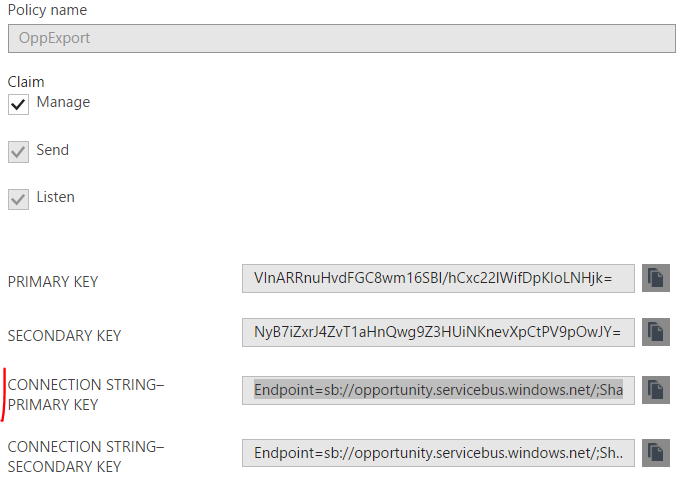
This is all for the Azure side. Now we are ready to configure the Dynamics 365 Service end-point.
4. Download the Dynamics 365 SDK. In the SDK, go to tools > plugin registration folder and run the plugin registration
application.
5. Create new connection and enter the email address and password to connect to Dynamics 365 and login.
6. Click register and select register new service end point. Here copy the connection string from Azure Service Bus portal
7. Paste the key copied in Step # 3 and click next. The Service end point registration is created. Click save.

Next we have to register a step to send Opportunities to Azure Service Bus.
8. Right click on the Service End point and Select Register New Step.
9. Select Create and enter
primary entity as Opportunity as shown below. Set execution mode =
Asynchronous. Select Authorization Type = SASKey. Message format can be
as needed for the integration with the LOB application.


Once the step is registered it is ready for deployment.
To test the Dynamics 365 to Azure integration, I created 2
opportunities in Dynamics 365.
The system jobs in D365, shows the system events
which sent the 2 opportunities to Azure Service Bus as shown below.

And finally in the Azure Service Bus Queue, I can see the 2 Opportunity messages were successfully published.

The next step is to connect the LOB application to listen to the Azure Opportunity Queue.
Hope the above provides details to do integration with Dynamics 365 and Azure. Thanks for reading.
Mihir Shah
Reference -
- MSDN – Azure integration with Dynamics 365 - https://msdn.microsoft.com/en-us/library/gg334766.aspx#A%20Dynamics%20365-to-service%20bus%20scenari


