Showing posts with label Azure integration. Show all posts

Wednesday, May 31, 2023

Azure DevOps Pipelines with Power Platform - Part-1 The Benefits

In today's fast-paced world, organizations need secure, efficient and reliable tools to streamline their software development processes. Microsoft's Power Platform has emerged as a leading low-code development platform, empowering businesses to rapidly build custom applications, automate workflows, and analyze data. To further enhance productivity and collaboration, integrating Azure DevOps Pipelines with Power Platform offers a powerful combined solution. In this blog, I will explain the benefits of using Azure DevOps Pipelines in conjunction with the Power Platform to optimize your #PowerPlatform development projects.

1.            What is Azure DevOps Pipelines? Azure DevOps Pipelines is a cloud-based service that enables you to create, test, and deploy applications with speed and efficiency. It provides a robust set of tools for continuous integration, continuous delivery (CI/CD), and release management. By incorporating Azure DevOps Pipelines into your Power Platform projects, you can automate build, test, and deployment processes, ensuring consistent and reliable software delivery.

ADO Pipeline monitoring in Power Apps


2.            Key Benefits of Azure DevOps Pipelines for Power Platform:

a. Seamless Integration: Azure DevOps Pipelines seamlessly integrates with Power Platform, offering a unified environment for managing the entire application lifecycle. From version control and code collaboration to automated deployment and monitoring, all development stages can be orchestrated within a single platform.

b. CI/CD Automation: By configuring continuous integration and continuous deployment pipelines, you can automate the process of building, testing, and deploying Power Platform solutions. This not only saves time but also reduces human errors, ensuring consistent quality throughout the development lifecycle.

c. Version Control and Collaboration: Azure DevOps Pipelines provides version control capabilities, allowing multiple developers to work on the same Power Platform solution concurrently. With features like branching, merging, and pull requests, you can manage code changes effectively and promote collaboration among team members.

d. Agile Project Management: Azure DevOps Pipelines integrates seamlessly with Azure Boards, enabling you to manage and track work items, backlog, sprints, and project progress effectively. This integration ensures that the development process aligns with Agile methodologies, facilitating transparent communication and enhanced project visibility.

e. Extensive Library of Tasks: Azure DevOps Pipelines offers an extensive library of pre-built tasks that can be easily customized and configured to meet the specific requirements of your Power Platform projects. From environment provisioning and solution packaging to testing and deployment, these tasks provide a comprehensive set of tools for efficient project management.

I hope this blog helps you understand the benefits of leveraging ADO Pipelines with #PowerPlatform. In my next blog I will write more about how to use ADO Pipelines and #PowerPlatform better together.

Thanks for reading

@mihircrm

365WithoutCode

Saturday, January 19, 2019

Increase Sales with Dynamics 365 AI for Sales - Part-1


This is part-1 of my blog series on AI with Dynamics 365. In my earlier blog I discussed about the need for systems of intelligence and how Microsoft has introduced a suite of AI apps with Dynamics 365. This blog is on Dynamics 365 AI for Sales.

Enterprise clients want a healthy sales pipeline with motivated sales force. It is vital to provide all necessary tools for the sales person, to be able to focus on the right leads and opportunities and close sales faster to deliver on sales targets. Dynamics 365 AI for Sales aims to do just that –
·       Help increase Sales – Business management
·       Analyze sales team performance – Team management
·       Get insights on Customer interaction – Call Intelligence

Dynamics 365 AI for Sales
Why use Dynamics 365 AI for Sales? – Large enterprises gets 1000’s of leads and opportunities from different channels and sources. They are all collected, cleansed and fed into a sales management system like Dynamics 365. The plethora of leads and opportunities can become overwhelming for a sales person, and it becomes difficult for the Sales team to focus their efforts on the important lead or opportunity and build the right customer relationship. 

Predictive Modelling - using Azure ML

Dynamics AI for Sales removes the manual guess work out of the Sales persons hand. It analyses the data within Dynamics 365 and Office 365 (exchange). It than uses Azure machine learning to creates a predictive model that scores and categorizes the leads and opportunities and identifies trends on a real time basis.
This provides indicators for the Sales team to identify the right lead and opportunity to meet their Sales goals.

Identifying trends

With the right information on the Opportunity or Lead such as the score, grade & trend is improving or declining – the Sales person and team can than work on it and get it to close faster. This will help increase the Lead qualification and Opportunity close rate and improving the overall business.

Initial observations –

  1.       Dynamics 365 AI for Sales only works with data from Dynamics 365. So if you need to integrate data from multiple systems outside Dynamics 365 it may not be feasible.
  2.        Requires a separate license and it is a different app. Users may not want to log into to multiple App. Though the data is also shown in Dynamics 365 – like the Lead / Opportunity scoring, grading and trends. But the AI app has some cool visualizations for management.
  3.       It currently only collects data from the OOTB Sales entities – Leads, Opportunities, Goals etc. If you are using custom entities than they will not be used for the predictive modelling. Also if you are not using OOTB entities like Goals the app may not be that useful.
  4.       The models cannot be customized as provided by AML. 

      Considering this is still in preview & version 1.0, I would expect it to only improve over time. My thoughts are, this is a good way of proving how you can integrate Dynamics 365, Office 365 & Azure ML and make an AI app to help the organization do more.

To achieve the above is not an easy task and needs understanding of the organization sales business process and Dynamics 365 Sales integration. Systems of intelligence cannot be built overnight and needs the underlying data from systems of engagement and systems of records. 

I hope this gives you a brief idea of the upcoming capabilities of Dynamics 365 AI for Sales. In my next blog I will write more about the implementation of Dynamics 365 AI for Sales. Keep reading.

Mihir Shah
365WithoutCode

Thursday, July 6, 2017

Azure integration with Dynamics 365 - Part 2 - Queues

This is Part 2 of the Azure integration with Dynamics 365. You can read the Part-1 blog about the Azure Service Bus.

In this blog we will set-up and configure Queue in Azure Service Bus to receive messages from Dynamics 365.
Queue is an entity within the Azure Service Bus which is used to store messages.

Benefits of using Queues in Azure -
1. Queues acts as an intermediary to communicate between 2 different systems.
2. It decouples the 2 systems - The sender can send messages and receiver can receive messages without them running at the same time.
3. Like a distribution center it receives products (messages) and sends to one or many systems. Note - each message can be received only by 1 receiving system.
4. Useful for batch and mobile applications

Consider a scenario - You wan to send data from Dynamics 365 to other line of business applications on the occurrence of an event in Dynamics 365. For example – when an Opportunity or an Order is created in Dynamics 365 Customer Engagement online, the details is to be sent to an on premise LOB application - like an ERP system.

In order to enable this the following is needed.
  1. Azure subscription with Azure Service Bus and Queue
  2. Service end point registration in Plugin Reg tool in Dynamics 365 to post to Azure
  3. Set-up the LOB Application to listen to Azure. (Not covered in this blog)

The following diagram provides an overview of a Dynamics 365 to 3rd Party application using Azure. (Ref-1)

The steps to set-up the Queue and Plugin is defined below.
  1. Set-up an Azure subscription and create a Service Bus. The Opportunity service bus is created as shown below.


2. The Service Bus can have Queues or Topics. We will be using Queues to receive the Opportunity from Dynamics 365. In Azure, Go to Entity and select Queues and create a new Queue. The Opportunity queue is created as shown below.


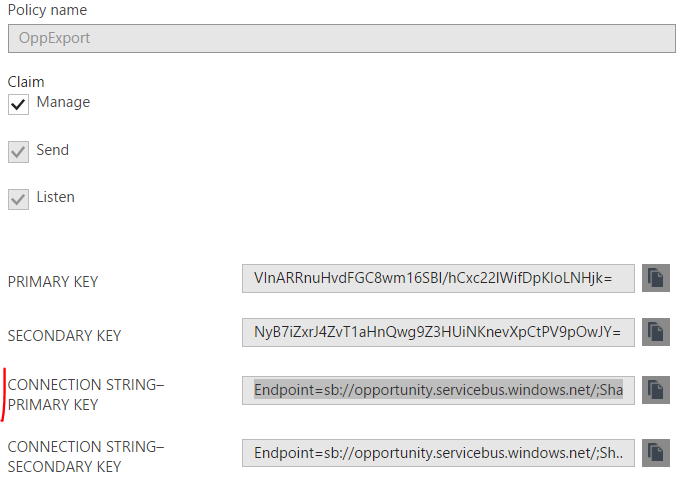
3. Open the Queue and select Shared access policies. Create a new shared access policy and select manage checkbox. Open the shared access policy and copy the Connection String – Primary Key. We will be using it in the pluggin registration tool.

This is all for the Azure side. Now we are ready to configure the Dynamics 365 Service end-point.

4. Download the Dynamics 365 SDK. In the SDK, go to tools > plugin registration folder and run the plugin registration application.

5. Create new connection and enter the email address and password to connect to Dynamics 365 and login.

 6. Click register and select register new service end point. Here copy the connection string from Azure Service Bus portal

7. Paste the key copied in Step # 3 and click next. The Service end point registration is created. Click save.


Next we have to register a step to send Opportunities to Azure Service Bus.

8.    Right click on the Service End point and Select Register New Step.

9.    Select Create and enter primary entity as Opportunity as shown below. Set execution mode = Asynchronous. Select Authorization Type = SASKey. Message format can be as needed for the integration with the LOB application.


Once the step is registered it is ready for deployment.

To test the Dynamics 365 to Azure integration, I created 2 opportunities in Dynamics 365. 
The system jobs in D365, shows the system events which sent the 2 opportunities to Azure Service Bus as shown below.
And finally in the Azure Service Bus Queue, I can see the 2 Opportunity messages were successfully published.


The next step is to connect the LOB application to listen to the Azure Opportunity Queue. 

Hope the above provides details to do integration with Dynamics 365 and Azure. Thanks for reading.

Mihir Shah

Reference -

  1. MSDN – Azure integration with Dynamics 365 - https://msdn.microsoft.com/en-us/library/gg334766.aspx#A%20Dynamics%20365-to-service%20bus%20scenari

Wednesday, June 14, 2017

Azure integration with Dynamics 365 - Part-1 - Azure Service Bus

In a connected world it is important for cloud based applications to be able to communicate and integrate with on premise and online business applications. Microsoft has OOTB and custom options that integrate Dynamics 365 with other business applications using the Azure platform. This blog is to discuss the Azure Service Bus options. The 2nd part of this blog will discuss the Dynamics 365 integration.

Why use Azure?

Azure Service Bus is a reliable, enterprise level message delivery service. The benefits of using Azure cloud messaging platform includes –

1.  Integrate between cloud to cloud or cloud to on premise business applications
2. Increase availability, security and scalability of systems
3. Cost effective and easy to manage

Azure Service Bus provides 3 communication mechanisms – Queues, Topics and Relays.


1. Queues – In a Queue, the sender sends a message to the Azure Service Bus Queue where it stays. When the Receiver connects to the Queue it gets the message. Queues are useful for batch and mobile applications.

Fig-1 - Queues

2. Topics – The sender sends a message to the Topic and it will stay there. There can be one or many receivers. The receivers can all receive the messages. The receiver can also filter the message they receive using their subscription.


Fig-2 - Topics with filtered Subscriptions

Relay – Relays provide 2 way / Direct communication link between Sender and Receiver. The Sender and Receive are both connected to the Relay using TCP/IP. This overcomes the Firewall and NAT problems faced with direct connections between 2 applications. Relay is created when the Receiver connects to Azure and a link is establish with the Sender. As soon as the connection drops the Relay is deleted.


Fig-3 - Relays - Direct link

Description
Queues
Topics
Relays
Communication
One directional
One directional
Bi-directional
Distribution
1 message to 1 recipient
1 message to many
Recipients
Direct connection
Type
Asynchronous
Asynchronous
Synchronous
Filtering
No
Recipients can filter
messages using subscriptions
No

In summary the right option needs to be selected for Azure Service Bus connection with business applications. In the next blog I will write about using Queues to publish data from Dynamics 365 to Azure Service Bus without writing any code.

Thanks for reading!!