Friday, August 17, 2018

Dynamics 365 & Enterprise Design Thinking - Delivering Dynamics 365 Part-1


This is part-1 of a multi series blog about Delivering Dynamics 365 online (CRM) in the Enterprise. Microsoft Dynamics is now the business application platform of choice for Enterprises who are doing Digital Transformation projects. Dynamics 365 in conjunction with Azure and Office 365 is a strategy tool that Enterprise can depend, build upon and deliver long term business growth models with confidence. 
At IBM, Enterprise Design Thinking is helping project teams to deliver better experiences at scale. I will discuss its use in conjunction with Agile and how it helps in Dynamics 365 project implementations.
Enterprise Design Thinking @ IBM


1. Why Enterprise Design Thinking  - Dynamics 365 is a multi-faceted platform that can, in enterprises, be used for Sales / Customer Service / Marketing / Custom business process / Portals... When selecting the optimum business application where Dynamics 365 will be most useful, it is critical to identify the right problem to solve. There are 2 steps to be followed for the success of an Enterprise project.
  • Step-1 Doing the right project. - There can be multiple strategy / tactical options for an Enterprise to select from when planning for Digital Transformation. Due to budget, time and resource constraints (the eternal project constraints) management has to select the right strategy option / program for the organization. Enterprise design thinking is an approach to identify the strategic goals that will deliver the best outcomes for the user and customer.
  • Step-2 Doing the project right - Once the right project / program is selected and the goals / hills are identified, the design and delivery of the project (doing it right) is where Agile project implementation really makes a difference.
Enterprise Design Thinking helps in identifying the problem to solve focusing on user outcomes. So every major project (where feasible) should begin with Enterprise Design Thinking approach to define the project hills (goals).

2. How does it work for Dynamics 365? - Enterprise Design Thinking is based on set of principles - Some of the key concepts are 
  1. Focus on user outcomes - This is to enable the future users of Dynamics 365 to make a substantial difference in how they do their current work for their customers. The challenges faced by the users are highlighted and a future outcome is envisioned. The 'aha' moment in delighting the customer is defined as Hills (goals).
  2. Team work -  People from different areas come together as a team to collaborate. They work together, develop mutual respect, trust and ideate. In Dynamics 365 we have multiple teams working together like - Dev, QA, business users, BA's, integration... They need to be guided with the same goal. The hills identified become the guiding star that everyone looks upto as a team when working on the project. There are many tools / artificats in Design Thinking process that help the team to collaborate, think and reflect together. 
  3. Relentlessly reinvent - This is the iterative cycle of improvement. As we design and deliver solutions for better user outcomes, the process of feedback can help improve and provide an even better solution.  It is also key to consider everything as a prototype and deliver solutions faster in an iterative manner. Dynamics 365 / Power Apps helps to design and present prototype to business users in a short time so that they can get a quick view of the proposed solution. Any feedback can be incorporated in the early design stage.
In an Enterprise Dynamics 365 project we worked on, the team first went through the Enterprise Design Thinking process, where we collaborate, ideate and identify the hills (aha moment). One of the hills identified, was chosen as a goal for the first phase of the project. That became our guiding north star which we used to stay on track and help deliver the project using agile methodology.

Agile and Enterprise Design Thinking have lot of similarities and when used in conjunction they help business in envisioning, designing and consistently delivering better solutions. 

Do let me know about your experience with Design Thinking. In my next blog (part-2) I will write about the agile implementation process for delivering Dynamics 365. Thank you for reading.

Mihir Shah


Tuesday, June 19, 2018

Approvals for Dynamics 365 using Microsoft Flow


One of the business requirement which I have encountered is to provide an ability to approve or reject a request (for example lead or Opportunity) in an email without having to open Dynamics 365.
This is now possible using Approvals in Microsoft Flow. Below is an example.
Business scenario – When a lead is created in Dynamics 365, send an Approval email to user/s. Provide some details of the lead in the email. Once the user approves or rejects the lead, capture the response with the comments in Dynamics 365.
   
        I have setup the following environments –
a.       Dynamics 365
b.       Microsoft Flow
c.       Outlook online - Office 365

     Create a new Approval flow with Dynamics 365. In this example an approval email is sent when a Lead is created. I have connected to the demo org and selected the Lead entity.
Flow trigger - When a lead is created

Next step is to create the Approval.  The approval sends an email to the approver with a link to the record and some details info. The approver can review the email, approve or reject the record from within the email and add comments to it.

Approval email config
When a Lead is created in Dynamics 365 the approval is triggered and it sends an email to the person/s who need to approve. The email is shown below. The email is from Microsoft. I am not sure if this can be modified. The body of the email is as configured and shown below

email body
The approver can select Approve or Reject from within the email and also add comments.
The next step is to set a condition for updating the response into Dynamics 365. I have added the condition below. I have also added 2 custom fields to the Lead entity to store the response in the Lead record.

Conditional action
If approved I want the Lead record to be updated with the response and comments.

Update lead

I can also add a condition if the Approver rejects to update the lead with the response and comments.
Here is the end result with the Lead entity record updated in Dynamics 365.

Lead record updated
Microsoft has provided ability to track the run history and performance of the flow with Power BI analytics.


Run performance

This is a simple way to perform Approvals in Dynamics 365 using Microsoft Flow. I hope this helps you to try the Approvals and let me know your experience with it. 


Wednesday, May 2, 2018

What’s new in Dynamics 365 – Spring 2018 – Knowledge Management


Microsoft has releases its latest iteration of Dynamics 365 – Spring 2018. I had previously written about, What's new in Sales and Customer Service. This blog focuses on an updated / new feature – Knowledge Management. I am sure this will be a useful tool for all businesses to build a knowledge management strategy. As employees transition, the knowledge repository should stay and grow as an organizational asset.

Knowledge management allows to create, search, edit, review, translate and publish knowledge articles. Knowledge articles can be any customer issues, F.A.Q’s, new business process training, how to steps that a user can search for and get benefited. Knowledge articles can include images and videos.

Use Cases for Knowledge Management –

1.       Customer Service Management - Knowledge Management is crucial for customer service / call center operations. It allows to store the steps / process for troubleshooting / resolving an issue and make it available for all users. The customer service agents can also email the knowledge article to the customer.

2.       Training – Knowledge Management can also be used for internal training. For example – there is a new sales process implemented, the Sales Manager can define the process steps in the knowledge management article and make it available on the sales entity like Opportunity or Lead. Now any Sales user can than search and refer to the knowledge article to better understand the new Sales process. Another useful feature for training is the Learning Path.

3.       In-house back-office support / IT support – In-house IT routine support calls can by minimized by providing detail troubleshooting steps to end users. So when a user searches for a particular issue like - how to reset password, the knowledge article can provide the answers.

Knowledge Management security and business process –

The knowledge management process can be managed by a user / team. There is a custom security role called Knowledge Manager created OOTB with full access to Knowledge article entity. Customer service manager and rep role users OOTB security role have the read and create capability for knowledge article. Any other users who need access to the knowledge articles (my guess is all users) should have at least read access to the knowledge articles entity.

The business process for knowledge article is shown below –

Knowledge article process
The business process flow for Knowledge article in Dynamics 365 is shown below. There are 3 stages – Author, Review and Publish. 

Business process flow
The business process stages and steps are detailed below –

1.       Author –

a.       User creates a knowledge article. The article status reason is proposed.
b.       Once created the knowledge article is given a major version 1 and minor version 0.
c.       User completes the article and marks it for review.
d.       This changes the status to in review and the bpf is moved to the next stage. Also the knowledge article can be manually assigned / sent to the Reviewer user or to Reviewer team queue (Automating this process is recommended)
Author stage

2.    Review –

The reviewer who is assigned the article can now pick the article and reviews it. If it needs modifications they can reject the article and add a reason. If they are ok with the article they can approve the same.

Review stage

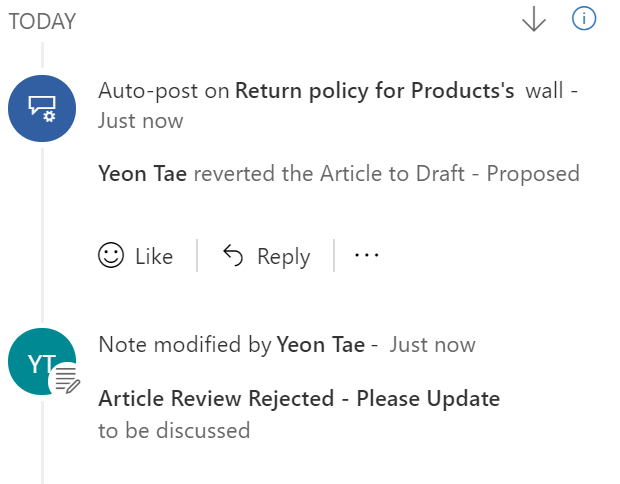
If the article is rejected, the reject reason gets posted in the timeline of the article and it gets assigned back to the user who created the article.

Reject reason post

There is also an additional “Update Content” stage added to the knowledge article. 

Update Stage added
The author of the article can complete the update as needed and assign it back to the reviewer user or team for finalizing and publishing the article.

 3. Publish

If everything is correct, the reviewer add product associations and can also add an expiry date.
Publish stage

Once complete the article is ready to be published. The manager can publish the article now or on a future scheduled date. Also set the expiry date and status of the article after it expires as shown below.


Publish article

In addition to above the following functionality is also available
1.       Article translation into multiple languages
2.       Article views / analytics
3.       Article linked to records like Case
4.       Article versioning capability

Hope this helps in getting started with and implementing a knowledge management strategy. Thanks for reading.

Mihir Shah
365WithoutCode


Tuesday, April 24, 2018

What’s new in Dynamics 365 Spring 2018 – Customer Service


Microsoft has released the latest version of Dynamics 365 applications for Spring 2018. This blog talks about what’s new in the Customer Service application. OOTB there are 2 apps for Customer Service process in Dynamics 365 – Customer Service app on the old web client interface and Customer Service Hub app on the new Unified interface. To read about What’s new in the Sales refer my earlier blog here.

The Customer Service Hub was introduced in ver 9.0. “Built on the Unified Interface framework, the Customer Service Hub is a focused and intuitive application for case and knowledge management on any screen size, device, or orientation.”
Important things to note –
  •           Timeline and Knowledge management (articles) is available OOTB on the Customer        Service Hub app
  •          Knowledge Management is enabled for Case entity only by default

Customer Service Hub application has the following new features –


  1. Case – With Spring 2018 release Case Management and Knowledge management business processes, related entities are on the Customer Service Hub - new unified interface framework. This includes – Account / Contact / Case / Queues / Knowledge article / Activity …

It may be important to note that there are some known issues with the new Unified interface framework. You can get more details in this link - https://docs.microsoft.com/en-us/dynamics365/customer-engagement/admin/readme-9#sales-hub-and-customer-service-hub-apps-

Below is an example of the Case form in the Customer Service Hub app on unified Interface. The business process is on the top in a floating mode. The Case form also has the new Timeline feature.
Case form with floating BPF

Below is the Case form with the business process docked on the right side.
Case form with docked BPF

2. Timeline  -  Timeline is a new feature that was added with v9.0. It allows users to see and create customer interactions including activities like appointment, phone call, email, task, notes and system posts. Note: Timeline is only available on new unified interface.

Timeline on a Case form

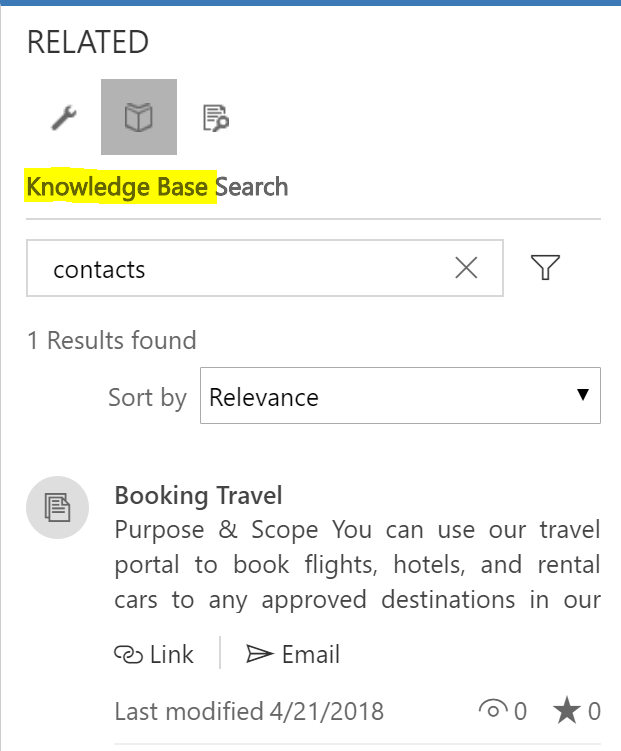
3. Knowledge Management (KB articles) - Customer Service Hub app has the Knowledge Management feature which enables the Customer Service user to quickly search for Knowledge articles from the related panel on the Case form. 
KB article in related panel of Case form
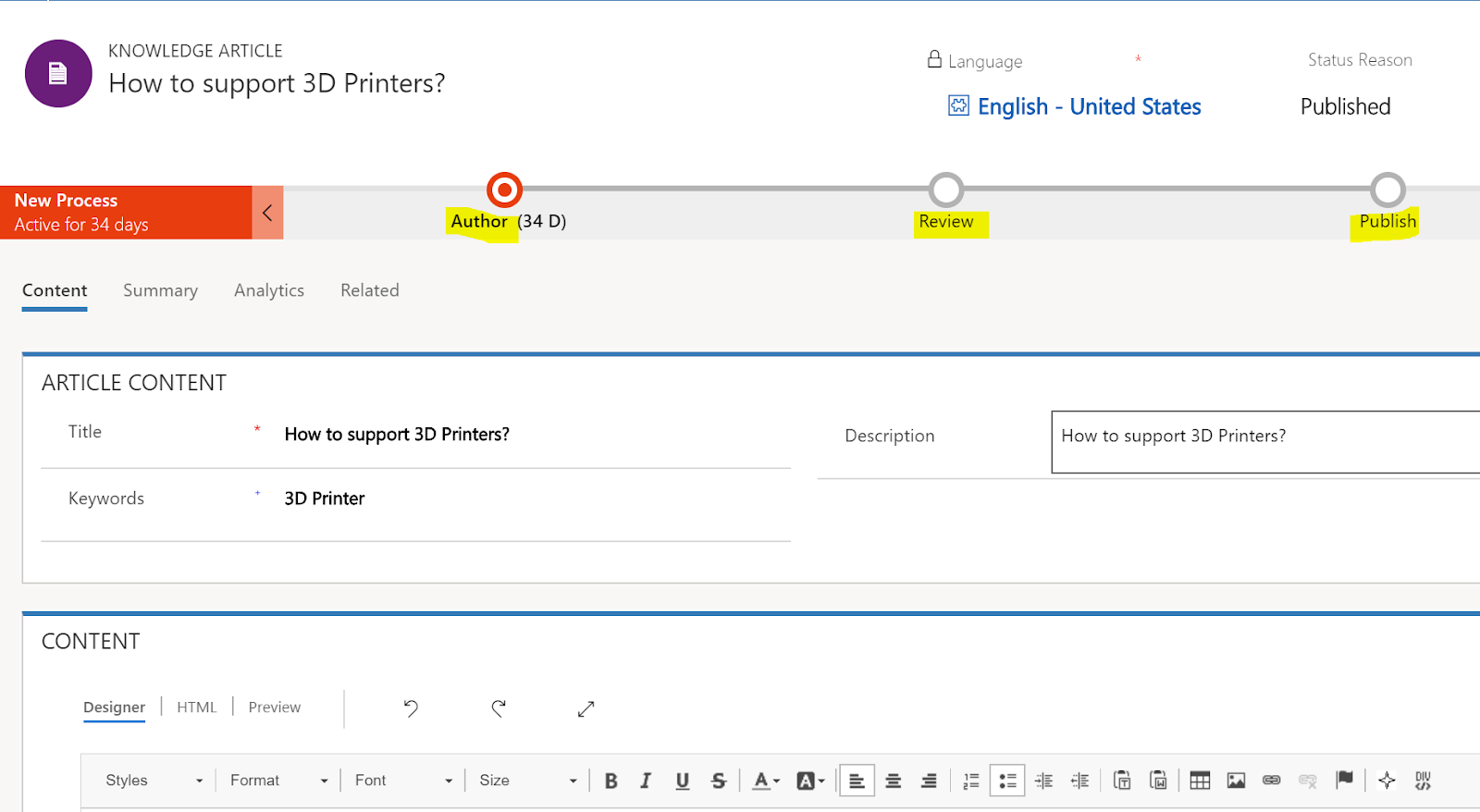
Users can search, author, review and publish knowledge articles using a rich text editor. Below is a KB article and its business process flow.
KB Article with BPF
4. Dashboards – There are new Dashboards in the Customer Service Hub. Some of them are discussed below.
a.       Tier-1 dashboard for customer service agents to deliver 1st level of support and handle multiple customers at the same time.

Tier-1 dashboard for Customer Service agents
a.       Tier-2 dashboard is for Service Managers or Tier-2 agents to get an overview of the cases and monitor more complex or escalated cases in a single view.
Tier-2 dashboard for Customer Service Managers
c.       Knowledge Manager dashboard – gives an overview of the KB articles to KB managers
KB dashboard
I hope this gets you started to try out the new features in Dynamics 365 – Spring 2018 release for Customer Service. 

Please do let me know your questions and experience with the new capabilities. Thanks for reading.

Mihir Shah
365WithoutCode


Monday, April 16, 2018

What's new in Dynamics 365 Spring 2018 - Sales


Microsoft has released the latest version of Dynamics 365 applications for Spring 2018. This blog talks about what’s new in the Sales application. 

OOTB there are 2 apps for Sales process in Dynamics 365 – Sales app on the old web client interface and Sales Hub app on the new Unified interface. Sales applications has the following new features –
  1. Unified Interface – With Spring 2018 release all the core sales business process entities are on the Sales Hub - new unified interface framework. This includes – Account / Contact / Lead / Opportunity / Competitors / Quote / Invoice / Product / Goals / Sales Literature…

The following apps and integrations are also on the Unified Interface framework
a.       Dynamics 365 App for Outlook
b.       Linked-In Sales Navigator integration
c.       Gamification

It may be important to note that there are some known issues with the new Unified interface framework. You can get more details in this link - https://docs.microsoft.com/en-us/dynamics365/customer-engagement/admin/readme-9#sales-hub-and-customer-service-hub-apps-

Below is an example of the Opportunity form in the Sales Hub app on unified Interface with custom control added to the Probability and Budget amount fields.

Opportunity - Unified Interface form with custom controls

      2. Embedded intelligence – The Sales apps have embedded intelligence capability which enables the Sales person to focus on Sales by providing the necessary actions. 
      The embedded intelligence -
a.       Collects, manages and analyzes the diverse data and communication during the entire sales process
b.       Automatically captures activities and suggests relevant actions to the Sales person

The components of embedded intelligence in the Sales app include – Relationship assistant, auto capture and email engagement. In my demo environment the intelligence configuration was still in the Settings > preview tab as shown below.

Intelligence configuration
The embedded intelligence functionality scans and analyzes the data in Dynamics 365 and Microsoft exchange and generates insights. The insights are shows in the form of Action cards to the user at an appropriate time as configured in the system. There are 10 base cards that can be enabled with the Relationship assistant as shown below - 

Base action cards
In addition to the Base cards there are additional enhanced cards the can be enabled and configured. 

Enhanced Cards


3. Enhanced integration with Linked In Sales Navigator – Linked In Sales Navigator is a online monthly service provided by LinkedIn / Microsoft.

If you have a Team or Enterprise license for Linked In Sales Navigator and Dynamics 365 license you can integrate them to work together. Integration is through a managed solution provided by LinkedIn / Microsoft in the Apps marketplace. 


Sales Navigator
The enhanced integration enables the Sales person to seamlessly work between Sales Navigator and Dynamics 365 and enables the following –
·       Allows users to search and lookup people LinkedIn profile, photo and work history from within Dynamics 365 using a widget in the form
·       Find new leads directly in Dynamics with Lead Recommendations
·       Get Account & Lead Updates including news mentions and job changes when viewing accounts in Dynamics
·       Send InMail, messages, and customized connection requests from within Dynamics

4. Sales / Relationship Insights – This is a new feature (in preview) introduced in Spring 2018 release. This feature can be enabled from within Dynamics 365. 

Relationship Insights
This leverages the data integration within Dynamics 365, Office 365 and Microsoft Exchange and Artificial Intelligence capability to derive insights to help the Sales person to better prioritize customers, leads and opportunities and improve their relationship health. (I will be writing another blog to detail this soon)

I hope this gets you started to try out the new features in Dynamics 365 – Spring 2018 release for Sales. Please do let me know your questions and experience with the new capabilities. 

Thanks for reading.

Mihir Shah
365WithoutCode


Monday, March 19, 2018

Data Export Service and Dynamics 365 online - Introduction


This is part-1 of a multi-series blog on Data Export Service and Dynamics 365 online. This blog is an introduction to and discussing the use case for Data Export service.

The performance impact of Reporting and Advanced Analytics in Dynamics 365 -
Once the Dynamics 365 application goes live, the transaction and operational data gets generated and stored in the instance. Business would like to run reports on the stored data and be able to do analysis comparing data from different periods, calculating averages and other advanced analysis. 

Generating Reports in Dynamics 365 online can be complex and sometimes it can hinder performance of the system when large # of users are running complex voluminous reports. 

As a general rule Dynamics 365 is NOT a Data Warehouse Reporting application. With Dynamics 365 online it becomes imperative to limit its usage as one (Data warehouse).

There are multiple options to overcome the above restraints as discussed below –

1. Copy and restore the Dynamics 365 online instance into another (sandbox) reporting instance – Than run reports on the new instance which does not affect the current production users.
– This is a manual process and may not be ideal for ongoing daily reporting / analysis.

2. Sync data from Dynamics 365 online instance to Azure SQL and run reporting and analytics from within Azure SQL
One of the option provided by Microsoft for this is the Data Export Service with Dynamics 365 online.

What is the Data Export Service?


Data Export is an add-on service made available as a Microsoft Dynamics 365 (online) solution that adds the ability to replicate Dynamics 365 (online) data to a Microsoft Azure SQL Database store in a customer-owned Microsoft Azure subscription. The supported target destinations are Microsoft Azure SQL Database and Microsoft Azure SQL Server on Microsoft Azure virtual machines. Data Export intelligently synchronizes the entire Dynamics 365 schema and data initially and thereafter synchronizes on a continuous basis as changes occur (delta changes) in the Microsoft Dynamics 365 (online) system.”

What are the possible use cases for Dynamics 365 data in Azure SQL?

1. As a Reporting database - it reduces the constraints on the Production instance. Azure SQL can be scaled to meet the performance needs for Reporting and Analytics.

2. For Advanced Analytics using Power BI – (I will be discussing more about this in my blogs)

3. For building machine learning models – SQL Server Machine Learning Services work with Azure SQL databases and can be used for developing Machine Learning models.

As the need for AI and ML grows so will the demand for accessing the data in a fast, secure and scalable manner. Enterprise will stand to benefit using the Data Export Service and getting access to the data from Azure SQL service.

4. Providing read access to data to 3rd party vendors / partners. Multiple data export service profiles can be set-up to export data to 1 or more Azure SQL database

Pre-requisite for Data export service –

1. Azure SQL Database subscription or Azure SQL Server on Azure VM
2. Azure Key Vault subscription in the same tenant as Dynamics 365 to allow Data export service to secure access Azure SQL
3. Dynamics 365 online 2016 or later version with the Data Export solution installed. (Note: Data Export Service will not work with sandbox instances)

Installing the Data Export solution –

1. From within Dynamics 365 go to Settings > Customization's > Dynamics marketplace and search for Data Export Service. Click on Get it now and enter the necessary details

2. The Data Export Service app window opens and your current instance is selected as default. Agree to the terms

Select / Connect to Dynamics 365 instance


3. The solution will be installed within Dynamics 365 as a managed solution

Managed solution

And you will see the Data Export button in the System tab

Button

Please leave your comments and any other use case that you may consider for Data Export Service.

Thanks for reading.

Mihir Shah
365WithoutCode


Wednesday, February 28, 2018

Enterprise deployment considerations for Power BI with Dynamics 365 online


This is part-4 of a multi-series blog on Power BI and Dynamics 365. The earlier blogs are on integrating Power BI with Dynamics 365 (Part-1), the Power BI Desktop (Part-2) and Data Insights (Part-3). This blogs focuses on deployments considerations for Power BI with Dynamics 365 online. It compares 3 deployment approach taking into cognizance the Enterprise environment and data culture.
Power BI deployment scenario with Dynamics 365 online -

Before we delve into deployment approach options let’s look at how Power BI will be typically deployed with Dynamics 365 online.

Power BI deployment with Dynamics 365 online
 1. Data sourcing - Here the source of data is Microsoft Dynamics 365 online which can be ingested into Power BI. It can be further enhanced with data from other data sources, online or on premise using a data gateway.


2. Datasets and reports - The data modelling, enhancements and reports are created using Power BI Desktop. They are then published into PowerBI.com online service and on mobile applications.

3. Dashboard and Data Insights - The dashboards are created in PowerBI.com PowerBI.com also allows users to get quick insights from their data using algorithms developed by Microsoft. The data insights visuals can also be added to the dashboards.

The dashboard can be brought into Dynamics 365 as a personal dashboard and shared with other users within Dynamics 365.

Considerations for Power BI deployment -

There are many factors to consider when deploying Power BI in an Enterprise environment. If it is to be used in conjunction with Dynamics 365 online, as an analytical reporting tool we need to include additional considerations. The enterprise environment and data culture also impact the deployment approach. 

1. Security

Dynamics 365 has a very granular security model. The structure includes Business units, security roles and teams. User may have access to data based on the security role they have, which business unit they belong to and what teams they are a member of, in addition to any other customization's.
Unfortunately Power BI does not respect any of the security construct within Dynamics 365. Additionally Power BI has its own row level security model which applies to the data set, reports and visualizations that are created in Power BI.

The visualizations developed within Power BI can be integrated and shared with other users who may or may not have access to the original data from within Dynamics 365 online. So it is important to manage the sharing of the visualizations within Power BI and Dynamics 365.

2. Governance

Governance for Power BI with Dynamics 365 applies to the sourcing of data and data storage. Power BI online can get data from within Dynamics 365 online and many other data sources which may or may not be part of the Enterprise data environment. The data from different sources can be combined, modified, enhanced and modelled to generate Reports and visualizations.
In enterprise deployments considerations have to be given to the source of Data. Also any modifications or enhancements made to source data needs to be governed. It is vital for user adoption that the data source is trusted, accurate and follows the Enterprise data management process.

There are limits to the amount of data stored in Power BI and also the size of the Data sets. The limits are dependent on the license type and quantity. Currently the limit is @1GB per data set and 10 GB per user for a Power BI pro license. Enterprise needs to make sure they comply with the licenses and data storage limits. Considerations have to be given to what kind of data is being stored and how long will the data storage is to be maintained.

3. Ownership

The ownership here refers to the responsibility of creating and managing the reports and visualizations.

Business power users have access to both Dynamics 365 and Power BI. They see the day to day business transactions being accumulated within Dynamics 365. They want to analyze and gain quick insights from the transaction data, would like to be able to create their own data model and prepare visualization’s. This will help them in understanding the business better and make decisions to react to the business challenges and ultimately make the business successful.

The Enterprise IT team on the other hand have been managing Dynamics 365 development and deployment. They would similarly like to manage the creation and deployment of Power BI & integration with Dynamics 365. 
The Enterprise IT follows a standardized development process. They want to be able to make data models that can be consumed and re-used with multiple divisions within the Enterprise. They also want to make sure that the reports and visuals adhere to Enterprise formatting guidelines.

It is important to acknowledge and appreciate the differences between business users and IT team efforts and goals. 

In consideration of the above, the following 3 deployment approaches are proposed for Power BI with Dynamics 365. 


1. Business led Power BI deployment – Here the business power users are leading the integration and development of Reports and dashboards using Power BI with Dynamics 365 online. IT is not involved in the management of Power BI reporting. This gives flexibility and agility to business users to create and develop their own datasets, reports and gather insights quickly.

2. Corporate (IT) Power BI deployment – This is the traditional approach where the Corporate IT department gathers the business reporting requirements and provides the business users the reporting and dashboards in Dynamics 365 to consume only. The business users have very little if any, capability of creating their own visuals other than the filters provided in the dashboards. The entire integration, generations and publishing of the reports and dashboards is managed by the IT department.

3. IT managed and business led Power BI deployment – A new approach to Power BI deployment is combination of both IT and business teams to work together. In this approach the data sourcing and governance is managed by IT. The IT team gets the reporting needs from Business. They, using the Power BI desktop and data gateways, integrate and ingest data, develop the data sets, models and reports and create Apps for deployment. The Power BI apps are published to PowerBI.com service and made available to business power users.

Business power users have access to PowerBI.com service and access the Apps published by IT. They can generate / edit the reports, create their own dashboards and get insights from PowerBI.com. They also can import the PowerBI.com dashboard into Dynamics 365 and share with other users.

The deployment approaches are compared below.
#
Description
Business Led Power BI deployment
Corporate (IT) Power BI deployment
IT managed /
Business led Power BI deployment
1.
Ownership
Business
Corporate IT
Corporate IT & Business
2.
Data sourcing and Semantic layer
Business
Corporate IT
Corporate IT
3.
Data modelling and reports
Business
Corporate IT
Corporate IT / Business
4.
Dashboard and Insights
Business
Corporate IT
Business
5.
Data Governance
High risk of business users ingesting unqualified data
IT team manages data based on Enterprise guidelines
6.
Security
Risk of business users accessing & sharing sensitive data
IT manages and controls access to data and sharing
7.
Agility and speed – Turnaround time
Faster turnaround of reports & insights
IT follows the enterprise reporting process. This may incur high turnaround time
IT follows the enterprise reporting process and business get access to generate dashboard and insights
8.
Agile development
Exploratory and non-linear
Traditional and sequential
9.
Development emphasis
Agility, speed and quick turnaround
Safety and security
Safety and security with flexibility

In conclusion there are multiple deployment options and Enterprise IT environment and data culture play a significant role in deployment approach. One approach I would recommend is that the Power BI and Dynamics 365 reporting development can start with Business led exploratory approach and over time transfer to IT Managed or Corporate led deployments.

I hope you enjoyed the blog and do let me know your comments. 
Thanks for reading
Mihir Shah
365withoutcode

Reference -
1. Microsoft whitepaper - Planning a Power BI Enterprise deployment (https://docs.microsoft.com/en-us/power-bi/whitepapers)