Showing posts with label #PowerPlatform. Show all posts

Tuesday, January 14, 2025

Designing an effective Power Platform Tenant strategy


In today's landscape where AI and digital transformation is at the forefront, leveraging tools like Microsoft's Power Platform can revolutionize the way organizations operate. With its suite of low code  apps—Power BI, Power Apps, Power Automate, and Microsoft Copilot —powerful business insights, custom apps, automation, and AI-driven chatbots, AI agents are just a few clicks away. However, to truly maximize these low code tools, a robust tenant strategy is essential and the very foundation for success.

Why Tenant Strategy Matters

A well-structured tenant strategy ensures that your Power Platform environment is scalable, secure, and aligned with business objectives. The tenant strategy outlines the setup and management of an organization's environments, including considerations for security, data residency, compliance, and governance. Some of the things to consider are discussed below -

Key Considerations for Your Tenant Strategy

  1. Environment Planning:

    • Development, Testing, and Production Environments: Separate these environments to ensure stability and security. This allows for rigorous testing before deploying solutions to production.

    • Sandboxes: Use sandbox environments for experimental development and to test new features without affecting production data.

  2. Data Residency and Compliance:

    • Ensure that your data remains within specified geographical boundaries to comply with local regulations. This is particularly important for organizations operating in multiple countries.

    • Select the appropriate region for your tenant to optimize performance and meet data residency requirements. 

    • Below is a Global multi-tenant for meeting Data residency requirements.


  3. Security and Governance: - The security and governance policies can be different to meet the local regulatory requirements.

    • Implement Data Loss Prevention (DLP) policies to prevent unauthorized access and sharing of sensitive information. 

    • Define User Roles and Permissions meticulously to safeguard data and applications against misuse.

    • Monitor and manage user activities and usage patterns to detect and address potential security threats.

  4. Scalability: Consider the implication of AI models for future growth planning. 

    • Plan for future growth by considering the scalability of your environment. Ensure that your tenant can accommodate increased workloads and data volumes as your organization expands.

    • Regularly review and adjust your environment settings to align with evolving business needs.

  5. Cost Management: The focus on reducing operations costs will require a constant cost optimization and management approach. 

    • Keep track of the ongoing costs associated with your tenant, including licensing, storage, and premium features. Implement financial controls to avoid unexpected expenses.

Best Practices for a Successful Power Platform Implementation

  • Regular Audits: Conduct frequent audits of your environments and costs to ensure compliance and identify areas for improvement.

  • User Training: Empower your team with adequate training and resources to utilize the Power Platform effectively. Encourage team members to get certified and showcase their talents.

  • Feedback Loops: Encourage users to provide feedback on their experiences and challenges to continuously refine your applications and business strategy.

In conclusion, an effective tenant strategy for the Power Platform isn't just about the initial requirements and setup—it's about creating a scalable, secure, and adaptable environment that can grow alongside your business. By focusing on these key areas, you can unlock the full potential of Power Platform and drive meaningful AI led digital transformation within your organization.

Let me know if this works for you. Thanks for reading.

Mihir Shah                            @mihircrm             365WithoutCode

Thursday, June 15, 2023

10 Things to consider when Managing Enterprise Apps - Microsoft Dynamics 365 on Microsoft Cloud

 Once an enterprise application like Microsoft Dynamics 365 goes live within an organization there is lot of excitement. The project team is happy with the results of the efforts over the year/s. It is the day after going live that the operations team is faced with the post go-live challenges. There are lots of questions on how to support, operate, manage, adopt and scale the new Dynamics 365 application. Microsoft Dynamics 365 in an enterprise cloud environment can be very challenging. There could be multiple integrations with other systems within and outside the organization, compliance and security requirements, business enhancements needs and performance management. This requires planning and coordination with multiple teams. This blog series is about how to prepare and plan for managing of an enterprise Dynamics 365 app. Here are the top 10 things to consider - 


1. Governance (decision making) - There needs to be a governance team in place. There could be multiple operations support teams working on the system for example the application support and maintenance team, the infrastructure and security management team and the application enhancement team. There has to be a defined governance team that may consists of representatives from business, IT, Project and executive management. This helps the operations team to report any blockers, get the guidance and support for the system management. The governance teams meets on a monthly cadence and reviews the teams progress and challenges. They will discuss how to resolve the blockers, improve the operational performance and opportunities for enhancing the Dynamics 365 application.

2. Security and Access control - As the Dynamics 365 application usage increase so does the need to add new users and give them proper access. There could also be challenges with the existing users who may need to modify their security roles, teams and business unit. It is an ongoing challenge to manage the users access and application security which needs to be considered and managed. Assigning a role based user security template will make the access streamlined. 

The tasks for the security team is to regularly review and update user security roles, active directory teams and business units as user responsibilities change. Also remember to remove users and reassign licenses when the users are no longer required to access the app. Finally regularly audit user access logs on a monthly or quarterly basis to identify any unauthorized or suspicious activities. 

3. Data security and integrity - Having a reliable quality data is important for the adoption and success of the Dynamics 365 app. Users should be confident that the data that they rely on to make business decisions is safe and trustworthy. Implement a data governance practice to maintain data integrity and quality. Regularly set reviews, cleanse and maintain data for accuracy, completeness and consistency. Users should be provided training in proper data entry and maintenance standards. 


The data loss prevention rules should be in place to prevent the leakage of data. Sensitive data in the Dynamics 365 app should be protected and secured using field level security. Duplicate detection should be in place and active where needed. It is essential to set-up data validation and duplicate detection rules to prevent erroneous and unreliable duplicate data. Data lifecycle, archival and storage needs to be planned as the data size grows with complexity.

4. Application Performance Monitoring - The Dynamics 365 application and related infrastructure should be continuously monitored for any issues, bottlenecks or maintenance requirements. A mechanism should be in place to trigger alerts and auto create incident support tickets for any identified issues. The error logs, system logs and performance metrics should be reviewed for measuring the performance of the application. Users should be trained in identifying and reporting issues with proper documentation. 

Microsoft provides many options to monitor and manage Microsoft Dynamics 365 and Power Platform. The Power Platform Admin Center has OOTB performance metrics that can be reviewed. Additionally Azure Monitor and Application Insights can be set-up to track and monitor the performance. Additionally you can even use Power Automate to trigger alerts and create incident support tickets.

5. Support Team  - Plan to have a dedicated multi-level support team. The teams can be set-up on a Tiered support level based on the incident complexity, severity and priority. Tier 1 and 2 support can be provided by the organization support helpdesk. Tier 3 support can be provided by the Application Manage Services Partner and Tier 4 support can be from Microsoft product support team. It is important to have the team trained on the business application and on supporting Dynamics 365 and Power Platform.

6. Product updates and upgrades - Microsoft provides 2 major updates annually for Microsoft Dynamics 365. Plan in advance to have the Dynamics 365 updates tested and implemented. 

Safe deployment of updates for Dynamics 365 by region


The business and IT needs will require regular enhancements of the Dynamics 365 application and supporting infrastructure. Ensure proper training of the support team as part of the enhancement of the Dynamics 365 application and infrastructure.

I hope this helps your organization in planning for the post go-live operations and management of the Dynamics 365 enterprise application on Microsoft cloud. Please stay tuned for my next blog where I will discuss the remaining 4 items to consider when managing Microsoft Dynamics 365 enterprise applications. Let me know your thoughts and thanks for reading.

@MihirCRM

365WithoutCode


Wednesday, May 31, 2023

Azure DevOps Pipelines with Power Platform - Part-1 The Benefits

In today's fast-paced world, organizations need secure, efficient and reliable tools to streamline their software development processes. Microsoft's Power Platform has emerged as a leading low-code development platform, empowering businesses to rapidly build custom applications, automate workflows, and analyze data. To further enhance productivity and collaboration, integrating Azure DevOps Pipelines with Power Platform offers a powerful combined solution. In this blog, I will explain the benefits of using Azure DevOps Pipelines in conjunction with the Power Platform to optimize your #PowerPlatform development projects.

1.            What is Azure DevOps Pipelines? Azure DevOps Pipelines is a cloud-based service that enables you to create, test, and deploy applications with speed and efficiency. It provides a robust set of tools for continuous integration, continuous delivery (CI/CD), and release management. By incorporating Azure DevOps Pipelines into your Power Platform projects, you can automate build, test, and deployment processes, ensuring consistent and reliable software delivery.

ADO Pipeline monitoring in Power Apps


2.            Key Benefits of Azure DevOps Pipelines for Power Platform:

a. Seamless Integration: Azure DevOps Pipelines seamlessly integrates with Power Platform, offering a unified environment for managing the entire application lifecycle. From version control and code collaboration to automated deployment and monitoring, all development stages can be orchestrated within a single platform.

b. CI/CD Automation: By configuring continuous integration and continuous deployment pipelines, you can automate the process of building, testing, and deploying Power Platform solutions. This not only saves time but also reduces human errors, ensuring consistent quality throughout the development lifecycle.

c. Version Control and Collaboration: Azure DevOps Pipelines provides version control capabilities, allowing multiple developers to work on the same Power Platform solution concurrently. With features like branching, merging, and pull requests, you can manage code changes effectively and promote collaboration among team members.

d. Agile Project Management: Azure DevOps Pipelines integrates seamlessly with Azure Boards, enabling you to manage and track work items, backlog, sprints, and project progress effectively. This integration ensures that the development process aligns with Agile methodologies, facilitating transparent communication and enhanced project visibility.

e. Extensive Library of Tasks: Azure DevOps Pipelines offers an extensive library of pre-built tasks that can be easily customized and configured to meet the specific requirements of your Power Platform projects. From environment provisioning and solution packaging to testing and deployment, these tasks provide a comprehensive set of tools for efficient project management.

I hope this blog helps you understand the benefits of leveraging ADO Pipelines with #PowerPlatform. In my next blog I will write more about how to use ADO Pipelines and #PowerPlatform better together.

Thanks for reading

@mihircrm

365WithoutCode

Friday, September 30, 2022

Enhancing legacy ERP systems with Microsoft Power Platform

On-premise ERP Systems have been the default system of record for the past 30+ years. They are the legacy systems used by millions of business globally which are running strong but lack modern technology. Organizations can find it difficult to improve their business processes and user experience without upgrading or moving the systems to a new cloud-based ERP application like Microsoft Dynamics 365. Organizations may also have challenges finding the necessary talent to incorporate complex AI / ML with their existing on-premise legacy apps. 

One option is to use Microsoft Power Platform to enhance the legacy ERP experience. Microsoft Power Platform is a low code application platform (LCAP) that provides multiple components (refer below figure) to use with existing system of records and add new technological capabilities. This blog discusses some of the business process automation that can be enabled by Microsoft Power Platform.


      #1 - Order to invoice process – Consider the scenario of a order to invoice business process. Typically, a customer sales order is received from website or email as an attachment and entered into the CRM or ERP system. This leads to the user creating a purchase order in the legacy ERP system to procure materials or products from the supplier. Supplier processes the PO and ships the products to the Customer (drop ship). Supplier sends packing slip and invoice to the business.  The business user invoices the customer. In a legacy ERP system, this can be a very manual, error prone and time-consuming process as the volume of orders increases.  


Order to Invoice process

This process can be automated and here are some scenarios where Microsoft Power Platform can be used along with the legacy ERP application.

  1. Automate Order Entry – Using Power Automate the entering of the order from email or as an attachment can be enabled. Power Automate cloud flow can trigger AI builder to scan and read the email attachment and capture the items that are ordered by the Customer. The cloud flow can trigger a Power Automate Desktop flow to enter the ordered items in the Legacy ERP system.
  2. Automate Vendor Invoice entry – As above the Power Automate can also be used to automate the vendor invoice entry into the legacy ERP system.
  3. Email to Customer – Power Automate can be used to trigger an order delivery email to the Customer when a Packing Slip is received from the Vendor.

There are many such use cases that can be automated using Microsoft Power Platform. An example of utilizing Microsoft Power Platform along with SAP CRM and SAP ERP applications is also shown below.


In this example Azure Data Factory is used to get data from SAP CRM and into Azure SQL. Then Power Automate flow and AI Builder is triggered to complete the automation.

Some other examples of using Microsoft Power Platform are also discussed below. 

#2 - Customer Chat-bot - Power Virtual Agent can be used on the Portal to answer queries from Customer. Customer goes to the Portal and want to know the status of the order. Power Virtual Agent can be enabled to trigger a Power Automate Flow to query the database and get status of the order and provide the information to the Customer. The Chat-bot capability can also be enabled to assist in answering queries on product inventory and pricing.

#3 - Gain business insights – Power BI can be used to develop visuals and dashboards to gain insights from business data. Power BI can connect to legacy on-premise systems using the data gateway. Power BI Desktop can be used to develop powerful visuals dashboards. Power BI can help empower business users to work with the data, model complex business scenarios and get insights they need to take actions and business decisions.   

Microsoft Power Platform as a low code app platform can help to empower your employees to do more with your existing legacy applications. Hope this makes you to try one of the Power Platform products. Do let me know about your experience using Microsoft Power Platform with your existing legacy applications.

Thanks for reading.

365WithoutCode     

@mihircrm


Friday, April 29, 2022

AI and Power Platform - Part -2 - AI Builder

 This is a continuation of my series on AI with Power Platform. Part-1 was on AI with(in) Power BI and this blog is about AI Builder.  As Apps are getting created for every possible business scenario there is also a demand for infusing AI in your Enterprise Apps. 

    Within the Microsoft Power Platform the easiest way to add AI to your Power Apps is by using AI Builder. AI Builder works with Power Automate and can instantly enhance your application by adding AI processing capabilities with your data. You can also choose to add AI capabilities using Azure AI, but if you are using Power Platform - a Low Code Platform App why not use AI Builder.

One of the main reason why you may want to use AI in your Apps is because today AI is a necessity not a luxury -  (Microsoft blog).  I am not saying every App needs AI, but it makes a big difference when you add AI capabilities within your Apps.

So how to get started with AI using AI Builder? It is very easy. Select AI Builder from PowerAutomate.com and get your first AI builder model created. Here are some things you may want to consider. 

AI Builder in Power Automate

1. Know the Business scenario that your App serves - Does you app process Customer application? Does it to Accounts Payable - Invoice processing? Is your app collecting Customer feedback? Based on that you can select the AI Model. 

Fig-1 Business Scenario


2. AI Model - Currently there are 17 AI builder model type and the list is growing every few months. It is important to select the right model type based on your business scenario. They range from forms processing, Prediction, Sentiment Analysis to Text Recognition. Every model is focused on one particular aspect of Business scenario. 

There are basically 2 types of model Builds and it is important to understand the differences between the same. 

Model Build

Pre-Built Model

Custom Model

Application

Generic Use Case found common across Businesses and Industries

Custom – For your specific Business Use Case

Customizable

No

Yes

# of models

11 Pre-built models

6 Custom Models

Training needed?

No

Yes


3. Collect the needed Data - Every model needs certain type of Data as Input to the model. The correct Data type has to be identified. You have to be diligent in knowing all possible variations and collect enough samples of each variation needed for the Custom model to be trained. There are 4 main data types as shown below. 


When collecting the Data for training the model it is important and necessary to understand the following 2 AI Integrity concepts to build a Trusted AI model. 

3.1    Bias - Bias in AI occurs when model gives a preferential treatment to certain privileged groups. AI models can become biased and that can have serious business implications. This can be because of the data that was used to train the model was not an accurate sample or had introduced the bias. So it is important to test the data and results of AI for any bias. (Refer IBM Blog)

3.2 Drift -  Drift can occur when AI models are faced with a different sets of data than what they were trained with. This can degrade the accuracy of the AI Model over time. (Refer IBM Blog)

 4. Train the Model - Every Custom model needs to be trained. Training is the critical part of AI Builder and if you do it wrong you will regret later. This reminds me of the movie - How To Train Your Dragon which can pretty much sum up as what to expect when you do not care for training your Model (Dragon). As you are training the model check for any possible Bias or Drift scenarios.

Train your AI Model

Training the model can take time based on the variation in the type of data. There is also a minimum # of sample data that may be required and recommended for training the model.

Train model

5. Manage the Model - Once the model is trained you need to manage and maintain it. AI Builder provides a snapshot of the model accuracy and confidence. If there is a degradation on the accuracy you may want to re-train the model with a fresh dataset. Make sure to test the model after every training.

Model performance

6. Deploy the AI model -  You will need to publish the model than you can use with Power Automate or Power Apps

6.1 Power Automate - You can use the model in a Power Automate flow. For example a Forms processing model can be referenced in the flow and the data can be extracted from the model and send for example via email. 

Extract data from invoice and send email

6.2 Power Apps - You can use AI Builder in 2 ways with Power Apps - 

        1. Use AI model in the Formula Bar - Example adding the Sentiment analyzed from a Text 

        2. Add AI Builder components to the App 

Add components

Things to note - 

1. AI Builder model is solution aware and can be added to the solutions. This is great for ALM.

2. Data Loss Prevention (DLP) rules also apply to AI Builder.

3. You can also do "Bring your own AI model" using Azure Machine Learning (AML) models.

Hope this helps you to get started with AI Builder and automate your tasks or generate insights. With a easy to build, low code application platform there is no reason why your App cannot have AI built in it. 

Let me know your experience in using AI Builder in your app and thanks for reading.

@MihirCRM

365WithoutCode


Thursday, March 31, 2022

AI and Power Platform Part-1 - AI with Power BI

 AI has become ubiquitously exploding and seems like every business application is now infused with it. This is also the case with many of the Microsoft business apps - Dynamics 365 and Power Platform. In this blog series I will explore the infusion of AI in the Microsoft Power Platform and business outcome benefits from it. To start this blog is about AI with(in) Power BI. 

There are many wonderful reasons to use Power BI -

1.    It is now the 'defacto' visualization tool for data with Microsoft

2.     Analytics using Power BI is easy to learn 

3.     It has built in AI capabilities that can be used without writing any code.

If you were not aware of the #3 above than now is the time to explore some of the AI capabilities. 

Power BI has many AI and AI related capabilities OOTB as detailed below -

1. Key Influencers - Provides impact and influence of key contributors on the result.

Key Influencers

The above report helps to answer Sales questions such as - What is the biggest influencer for an opportunity to be won? (or Lost) (discount as in this case and you may not need AI for that). The point is that we now have the power to quickly identify the key influencers on a particular business results. There is no more detailed modeling or manipulation of data needed and helps in understanding patterns and taking actions based on the key influencers.

2. Decomposition Tree - ability to quickly do a root cause and ad-hoc analysis using AI Splits.

Decomposition Tree

In this case we can drill down from Sales to a hierarchy of Sales by Category - by Product - by Region. The AI here is where to drill down using AI Splits to get to the next highest or lowest value. For example below shows that David So has the highest Opportunity values path.

AI Splits - Highest Opportunity value

This can be useful in identifying the biggest opportunity owner from an ocean of Sales data and making sure that the business results are met.
 

3. Anomaly detection - Auto detect anomalies in data and generate dynamic text summaries. Identifying anomalies in data may not be new but auto generating a paragraph that explains the anomaly can be very useful. It can also provide answers to specific questions. Lets look at the revenue line chart where there is a sharp decline in revenue. 


Anomaly detection

I can select the lowest point and right click > analyze > explain the decrease and Power BI shows me various possible reasons to identify the anomaly.

Analysis results

So now I know all the possible reasons there was a decrease in revenue in plain English. (If only it could tell me who is blank 😀 )

Additionally there are many other AI options like Q&A and Insights which provide great benefits to users.

You can add the AI insights to a report page using the Insert > AI visuals option or pick the AI visuals from the Visualizations pane.


I hope this helps in getting you started using AI in Power BI and let me know about your experience.

I will write more about AI in Power Platform in my future blogs. Thanks for reading.

@mihircrm

365WithoutCode


Monday, February 28, 2022

Industry Cloud solutions using Dynamics 365 and Power Platform

As Cloud applications are now the global standard, there is a demand for building vertical industry specific cloud solutions that provide pre-built insights and intelligence, business processes and relevant experiences for the industry. Microsoft has introduced multiple Industry Cloud with Dynamics 365 solutions. This blog is to introduce the Industry Clouds solutions from Microsoft built on the Microsoft Dynamics 365 and Microsoft Power Platform.

Currently there are 4 Industry Cloud solutions available and I am sure Microsoft is working on few more in the pipeline. They are as below.

  • Microsoft Cloud for Financial Services
  • Microsoft Cloud for Healthcare
  • Microsoft Cloud for Retail
  • Microsoft Cloud for Nonprofit

Each Industry Cloud has the following - 

1. Industry specific functionality - For example the Financial Services Cloud consists of the following -

A unified Customer Profile (Customer 360) app, Customer Onboarding app, Loan Management app  Customer Engagement app etc.. The Industry apps provide tailored experiences for both the users and Customers. They help in better collaboration and decision making.

Microsoft Cloud for Financial Services 


2.  Each Industry Cloud includes specific components - Solutions, Apps, Templates and Services. It also includes data model built for the Industry Cloud. The data model can also be installed as a stand alone solution. For example The Retail Banking data model.

3. A Compliance program for Microsoft Cloud which enables the Clients to measure and control Risks and manage Industry compliance. This also includes specific architectural templates to help in designing and deploying Microsoft Cloud solutions for the specific Industry. An example for Financial Services Cloud Architectural template is shown below.


There is certain requirements that needs to be followed.

1. You need to have the specific licenses before you can deploy the Industry Clouds. 

2. There are pre-requisite that needs to be completed and after the Industry Cloud solutions are deployed there are also post deployment steps to be followed. 

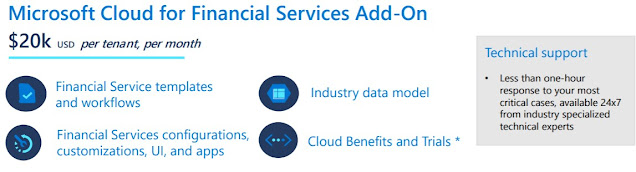
3. Pricing - Each industry Cloud has a specific pricing template. The price for Financial Services Industry Cloud is approx $20k per Tenant. If you have 1000+ users this is a very reasonable (imho) price for the OOTB functionalities that the Industry Cloud provides.

Pricing for Financial Services Cloud

I would recommend to first do an internal analysis on the business processes and perform a proof of concept testing of the Industry Cloud solution. 

The Microsoft Industry Cloud are great examples of how to best utilize Microsoft cloud apps for your specific Industry. They come pre-built with the data model, AI apps and solutions that you can easily test and deploy. I am certain this will help accelerate your cloud transformation journey. 

In my future blogs I will explore some of the Industry Clouds and write more about it. Thank you for reading and let me know about your experience with the Microsoft Industry Cloud.

@mihircrm

365WithoutCode


Monday, January 31, 2022

Intelligent Automation using Power Automate as a Platform - Introduction

Globally as demand for products and services increases there is a need for automation. Intelligent Automation is the combination of multiple automation technologies infused with AI. Intelligent automation, also known as Cognitive automation can help organization to achieve gains in operations productivity and efficiency, enhance business outcomes and gain insights for making better business decisions. This blog introduces Intelligent Automation (IA) and how Microsoft Power Automate can be utilized as a platform for Intelligent Automation.

Enterprises today have challenges with the ability to provide service across multiple digital platforms. The customer expects better standard of services with faster turn around times. Some of the use cases of Intelligent Automation are described below -

1. Finance - AP process - In an organization the finance Accounts Payable specialist may need to automate the daily task of receive an email from Vendor with a attachment of invoice, printing and manually enter the invoice in ERP system. In addition to entering the invoice the IA can also review the invoice, compare against the Vendor PO and detect any anomaly to provide insights to the business.

2. Customer Service - Receive a customer request for warranty service repair. Search and find the customer agreement on warranty repair, confirm it is a valid request. Prepare and send an RMA and Shipping instructions email to the Customer. In addition the IA can also do analysis on the Items being returned to notify the business of any issues found with returns of the same item from multiple customers. 

3. HR - New Hire onboarding process - The enterprise HR department can automate the various steps in new hire on-boarding. They can also help in guiding the new hires in the process and getting them the needed IT authorizations and assets like laptops etc. IA can help in streamlining the onboarding so it is a great experience for the new hires.

There are many such business scenario where intelligent automation can be applied to automate the process and reduce the effort.  The main benefits of applying Intelligent Automation (IA) for enterprise organization are -

1. Improve productivity and reduce operational costs - IA when applied to automate manual tasks at scale the organization gets benefitted due to improved process efficiencies and / or productivity. This also reduces the operations costs. 

2. Consistent processes - Another benefit is the consistency of processes across business units and improved accuracy and less manual errors due to automation. 

Lead to Opportunity Sales process with Cloud workflow

2. Enhance Customer experience- Intelligent Automation can provide faster turnaround and consistent delivery improving the quality of products and services which ultimately leads to a better customer experience.

3. Compliance and Regulations - Intelligent Automation can help organizations in complying with Industry procedures and provide reporting for Government regulations. 

Intelligent Automation platform with Power Automate can use the Microsoft Low code Power Platform automation and AI technologies when applied to improve business operations -

1. Digital Process Automation (DPA) - This is using cloud workflows to automate and integrate business processes. Power Automate provides cloud based workflow automation capabilities with 400+ connectors to many SaaS applications including Dynamics 365 and Salesforce. 

2. Robotic Process Automation  (RPA) -  Also known as UI automation which helps organizations improve their manual processes by automating the back office tasks. For example this can be done by capturing the clicks on the desktop and automating the manual processing of data. Power Automate Desktop is the RPA tool that can help in automating legacy business processes. 

3. Business Process Automation (BPA) - This can be used for automating business workflows like a Lead to Opportunity to Sales process. This helps in managing a consistent business process throughout the organization. The steps in the process can be automated that helps in improving the process efficiency. The standardized process can also help in interactions and engagement within the Sales team.

4. AI - AI when added can become the decision engine for automation. AI can be in the form of machine learning or cognitive algorithms that can recognize process patterns and make inferences for business. They can also detect anomalies or provide prediction based on the process data. In Microsoft Power Automate we can use AI builder to automatically process forms and documents, detect and identify images, text analysis and much more. 

AI builder in Power Automate

5. Process Mining - Process Mining can help in understanding and identifying the business process bottlenecks and select processes that can benefit from automation. Microsoft Power Automate includes Process Advisor that can help organizations in gaining deeper insights and optimizing business processes.

The combination of the above Intelligent Automation technologies can help Enterprise organizations in accelerating their digital business transformation goals and improve business outcomes. Let me know if you have implemented Power Automate for Intelligent Automation. Thanks for reading.

@mihircrm

365WithoutCode 

Wednesday, September 29, 2021

Where is your Data? - A need for Data governance platform

Digital transformation and app modernization programs results in new applications developed in the cloud or legacy apps moved to cloud. Along with the apps the data is also generated, moved, collected and stored in the cloud. The cloud data also needs to integrate and work with the data in onsite data repositories. As new data sources gets created it create new challenges for enterprises to track and manage data. 

Data storage and flows in hybrid cloud (image from Microsoft learn)


The consumers of data need to know where the data source is and how to connect to it. They also need to be able to trust the source of data. Data reliability is a concern when the data is used for AI and machine learning models and business insights generation.

The data producers needs to annotate, classify and create documentation for the data. Data management and maintenance is quite a challenging task for an enterprise with multiplying sources of data.

The data security admins needs to discover, identify, protect and restrict access to new and existing data sources. They need to make sure that proper process is followed when accessing sensitive classified data. Ensuring data classification, security and reliability is a concern for the admin with the increasing data generation and usage.

Finally there is the compliance aspects that needs to be met with Corporate data policies. This includes GDPR, HIPPA, PCI and other regulatory and industry standards. Data reporting is needed to ensure  compliance is met.  

This exponential growth and complexity in enterprise data in the cloud requires a cloud data governance platform.

The benefits of having a data governance platform can be -

1. An enterprise data catalog provide easy access to different source of data and information on those sources. This helps in better data discovery.

2.  Ability to make use of the data source and collaborate on the same with other users - for example asking for access 

3. Help in compliance - to make sure there is proper policy and procedure for enterprise data - manage the producing, consuming, storage and archiving of enterprise data, 

Microsoft has a cloud PaaS data governance platform called Azure Purview. Enterprise clients looking for Cloud data governance and compliance can benefit from using Azure Purview.  

I will write more about it once I have got some hands on experience testing Azure Purview with Power BI and Dynamics 365. How are you planning to manage and govern your data in cloud and onsite? Do you know where is your data? 

Thanks for reading.

@mihirCRM

365WithoutCode


Thursday, July 29, 2021

Managing Risks with Microsoft Dataverse Power Platform and Dynamics 365 - Part-1 - Business Continuity & Disaster Recovery

Risks management is critical for every organization.  There was a time when the severity, definition and type of risks that a business may encounter were considered to be different. The risk was dependent on the size, nature of business and geographic location. Now that the core business apps and data are running in the cloud, the risks are the very much the same for every organization. 

Why risk management for the Cloud?

Cloud has leveled the playing field when it comes to risk management. Every organization big or small will face the same level of risk. The impact of the risk in $ value may be different. It is imperative for organizations to have a risk management plan to understand, analyze, mitigate and protect themselves from running their business in the cloud. This blog series is focused on understanding risk management with Microsoft Dataverse - Power Platform and Dynamics 365. (disclaimer - I am NOT a business risk management professional. This is my attempt to help you understand how risks can be managed when using Microsoft Dataverse)

#1 - Business Continuity and Disaster Recovery (BCDR)

When you purchase Microsoft Dynamics 365 or Power Platform licenses you will be provisioning 1 or more environments. Consider environment as a container for your business apps and data. You may have multiple development sandbox, testing, staging and production environments. Each environment has an instance of Microsoft Dataverse. Your business users are provisioned in the different environment. You may have your environments in 1 Geo region (lets say East Coast - US) which is nearest to your group of app users. You may even have users globally and have multiple environments in different Geo regions. How do you protect your environments from a unforeseen disaster in a geo region? How do you ensure that your mission critical business apps will be up and running asap and your data protected? 

Every cloud services provider has a well defined plan to protect their customers apps and data in the cloud. Microsoft has defined a Business Continuity and Disaster recovery plan for the Dataverse environments. 

Dynamics 365 Customer Engagement apps - for the production environments a replica or copy is made in a second geo region (Geo secondary replica), of the different storage services like Azure SQL and file storage and compute infrastructure. The copy is done at the time of the deployment and on an ongoing basis they are kept synchronized (with some lag in minutes) through continuous data replication. 

Dynamics 365 Customer Engagement - Geo Secondary Replica

Dynamics 365 Finance and SCM apps - The geo secondary replica is also done for this apps. 

Dynamics 365 - Finance and SCM apps

The replica environments are in a Azure region pair and have a dedicated low latency network. They also are within the data residency and compliance boundaries 

Azure region pairs

Failover types and service continuity - 

Unplanned failover - In case of an unplanned failover in an Azure geo region, Microsoft will notify customers and route traffic to the secondary geo replica region. There could be a possible data loss for about 15 minutes during the transition.

Planned failover - If there is a risk to the availability of the primary geo region (like an upcoming hurricane) Microsoft will notify the customers and transition to the secondary geo replica region. The users who are connected to Microsoft Dataverse apps may experience some disruption. There will be no data loss.

Failback - Once the primary geo region is back up and running Microsoft will notify customers and move to the primary region. Connected users may experience disruptions but there will be no data loss. 

Things to note - 

1. Dataverse for Team environments do not support the Geo Secondary replicas. So if you are using Dataverse for Teams environments please make sure to have a backup on a regular basis. 

2. The geo secondary replica is only available for production instances of Dataverse. All other instances will face service degradations till the primary regions is back up and running.

3. Dynamics 365 Finance and SCM apps will have limited functionality when working in the geo secondary replica region. The Financial Reporting and Power BI reporting services will not be available. Customers can open a support ticket with Microsoft to get the Financial Reporting setup running in the secondary region.

I hope this helps in understanding the business continuity and disaster recovery risk management for Microsoft Dynamics 365 - Dataverse platform. In my next blog I will write about Security and Data loss - Risks.

Thanks for reading.

@mihircrm

#365withoutcode

Friday, May 28, 2021

Teams and Power BI - Enable visual collaboration

 The integration of Power BI with Microsoft Teams has enabled enterprise wide collaboration on data and visual presentations. This brings new ways of generating team insights where remote teams can review the data and provide feedback to improve the visuals. 

Power BI and Teams - Visual collaboration 

There are multiple ways you can share the Reports and Visuals from Power BI service into a Teams Chat or Channel. This blog describes some of the options for using Power BI within Teams.

1. Power BI App in Teams - You can add the Power BI app to teams which will enable directly working in the Power BI Service from within Teams itself. 

Power BI app in Teams

2. You can also add a Power BI tab to a Teams Channel. This enables to collaborate on the Power BI report within the channel. 

Power BI - Add as a tab to Teams Channel

Note - When selecting to add a tab - you can only add a Power BI Report but not a dashboard to the channel.

3. Chat in Teams - You can chat in teams from a Power BI Report / Dashboard or even a visual. This inserts a link in teams chat for the shared content. 


Visual tile - Chat in Teams

4. Link preview - You can add a link to a Power BI - Report / Dashboard or App in Teams chat and a link preview is shown. The user can open the Power BI visualization from within Teams.

Link preview in Teams

Things to note -

1. In order for the Teams integration with Power BI - the users will need a Power BI Pro or Premium per user license or the Power BI Report is in a Power BI - Premium capacity. 

2. Users within the Team will need to be shared the reports and given access to the underlying dataset to enable them access to the content. One way to enable this is to share access to the Report workspace to the Microsoft 365 Teams group 
Microsoft 365 group access to Power BI workspace


3. Power BI dashboard cannot be added as a tab to Team channels. Also the Link preview does not work in Meeting Chat or Private Channels

4. Make sure that the Power BI Teams integration is enabled in the Admin Portal > Tenant settings. (by default it is enabled)
Teams integration is enabled

I hope that this helps you in integrating Power BI and collaborating within Microsoft Teams. Let me know how you have gained from the Team insights which are enabled with this new feature.

Thanks for reading

@mihircrm
365withoutCode


Tuesday, March 23, 2021

Power BI with Power Apps Portals - Part-3

 Portals are now becoming ubiquitous as a Customer / Partner / Employee engagement channel. They can provide valuable information to a large audience. There is a need to embed dynamic visualizations, dashboard and reports in a Portal. This is very much possible now using Power Apps and this blog discusses how visuals from Power BI can be embedded into Power Apps Portals.

In my earlier blog I had mentioned about getting started with Power BI and Dynamics 365 Power BI template apps. This is a continuation and Part-3 of the Power BI with Dataverse series of blogs. 

An embedded Power BI dashboard can provide valuable information to the user when logged into the Power Apps Portal. Its great that one can create powerful visualizations but when the visuals drive insights and is showcased to a large # of users the value of the visual increases exponentially for the organization.

Power BI embedded in Power Apps Portals

Assuming you have a Power BI report or dashboard ready and a Power Apps Portal created in the same environment. The following steps will help you embed a Power BI report in Power Apps Portals. 

1. Configure Power Apps Portal

Go to Power Platform Admin Center and select your Portal 

Enable Power BI visuals

Click on Manage Power BI embedded service and select the workspaces that you have the Power BI reports and dashboards to be shown on the Portal.

Select Workspaces

Now you have configured the Portal for embedding Power BI. While you are on the managing Portal select Portal Details copy the application ID of the Portal. It will be useful in the next step.

Portal App ID

2. Set up Azure AD security group

We will need a Azure security group with the CRM Portal as a member. This security group will be given access to Power BI API. This will enable the display of visuals in the Portal.

Log in to Azure and create a new Security Group in Azure Active Directory. 

Security Group
Add Microsoft CRM Portal as member of the security group. Apply the Portal application ID to the member. 
Add member
Add the above security group to the Power BI Tenant Developer settings as shown below. This will allow the Portal to use Power BI API.
Allow to user Power BI API

Now we have completed most of the setup required. Next step is to configure the Portal and add the Power BI report and or dashboard to the Portal.

3. Embed Power BI visual in the Portal

Go to make.powerapps.com and select your portal and click on edit. This will open the Power Apps Portal Studio.
Here you can select to add a new page to the Portal or add a section to an existing page to display the Power BI visual.
One of the components you can add to a page or section is Power BI.
Add Power BI component

Once the component is added you will get the options to select the Workspace > Dashboard or Report to add to the Portal.
Add Power BI visuals as component

Things to note -
1. Users who log in to the Portal will need to be authenticated using AAD. 
2. Users will need Power BI license to view the visual
3. The Power BI dashboard or report will need to be shared with the user

I hope the above was helpful in embedding Power BI visualizations in to your Power Apps portals. Let me know if you have embedded Power BI in your Portal or custom websites.

Thank you

@mihircrm
365WithoutCode