Showing posts with label Apps. Show all posts

Thursday, June 15, 2023

10 Things to consider when Managing Enterprise Apps - Microsoft Dynamics 365 on Microsoft Cloud

 Once an enterprise application like Microsoft Dynamics 365 goes live within an organization there is lot of excitement. The project team is happy with the results of the efforts over the year/s. It is the day after going live that the operations team is faced with the post go-live challenges. There are lots of questions on how to support, operate, manage, adopt and scale the new Dynamics 365 application. Microsoft Dynamics 365 in an enterprise cloud environment can be very challenging. There could be multiple integrations with other systems within and outside the organization, compliance and security requirements, business enhancements needs and performance management. This requires planning and coordination with multiple teams. This blog series is about how to prepare and plan for managing of an enterprise Dynamics 365 app. Here are the top 10 things to consider - 


1. Governance (decision making) - There needs to be a governance team in place. There could be multiple operations support teams working on the system for example the application support and maintenance team, the infrastructure and security management team and the application enhancement team. There has to be a defined governance team that may consists of representatives from business, IT, Project and executive management. This helps the operations team to report any blockers, get the guidance and support for the system management. The governance teams meets on a monthly cadence and reviews the teams progress and challenges. They will discuss how to resolve the blockers, improve the operational performance and opportunities for enhancing the Dynamics 365 application.

2. Security and Access control - As the Dynamics 365 application usage increase so does the need to add new users and give them proper access. There could also be challenges with the existing users who may need to modify their security roles, teams and business unit. It is an ongoing challenge to manage the users access and application security which needs to be considered and managed. Assigning a role based user security template will make the access streamlined. 

The tasks for the security team is to regularly review and update user security roles, active directory teams and business units as user responsibilities change. Also remember to remove users and reassign licenses when the users are no longer required to access the app. Finally regularly audit user access logs on a monthly or quarterly basis to identify any unauthorized or suspicious activities. 

3. Data security and integrity - Having a reliable quality data is important for the adoption and success of the Dynamics 365 app. Users should be confident that the data that they rely on to make business decisions is safe and trustworthy. Implement a data governance practice to maintain data integrity and quality. Regularly set reviews, cleanse and maintain data for accuracy, completeness and consistency. Users should be provided training in proper data entry and maintenance standards. 


The data loss prevention rules should be in place to prevent the leakage of data. Sensitive data in the Dynamics 365 app should be protected and secured using field level security. Duplicate detection should be in place and active where needed. It is essential to set-up data validation and duplicate detection rules to prevent erroneous and unreliable duplicate data. Data lifecycle, archival and storage needs to be planned as the data size grows with complexity.

4. Application Performance Monitoring - The Dynamics 365 application and related infrastructure should be continuously monitored for any issues, bottlenecks or maintenance requirements. A mechanism should be in place to trigger alerts and auto create incident support tickets for any identified issues. The error logs, system logs and performance metrics should be reviewed for measuring the performance of the application. Users should be trained in identifying and reporting issues with proper documentation. 

Microsoft provides many options to monitor and manage Microsoft Dynamics 365 and Power Platform. The Power Platform Admin Center has OOTB performance metrics that can be reviewed. Additionally Azure Monitor and Application Insights can be set-up to track and monitor the performance. Additionally you can even use Power Automate to trigger alerts and create incident support tickets.

5. Support Team  - Plan to have a dedicated multi-level support team. The teams can be set-up on a Tiered support level based on the incident complexity, severity and priority. Tier 1 and 2 support can be provided by the organization support helpdesk. Tier 3 support can be provided by the Application Manage Services Partner and Tier 4 support can be from Microsoft product support team. It is important to have the team trained on the business application and on supporting Dynamics 365 and Power Platform.

6. Product updates and upgrades - Microsoft provides 2 major updates annually for Microsoft Dynamics 365. Plan in advance to have the Dynamics 365 updates tested and implemented. 

Safe deployment of updates for Dynamics 365 by region


The business and IT needs will require regular enhancements of the Dynamics 365 application and supporting infrastructure. Ensure proper training of the support team as part of the enhancement of the Dynamics 365 application and infrastructure.

I hope this helps your organization in planning for the post go-live operations and management of the Dynamics 365 enterprise application on Microsoft cloud. Please stay tuned for my next blog where I will discuss the remaining 4 items to consider when managing Microsoft Dynamics 365 enterprise applications. Let me know your thoughts and thanks for reading.

@MihirCRM

365WithoutCode


Friday, February 12, 2021

Power BI Template Apps - Power BI with Dataverse (D365) Part-2

 In my earlier blog I had written about connecting with PowerBI and Dataverse (D365) using the CDS or Dataverse connector. You can also use the Power BI template Apps that Microsoft has provided to see your Sales or Service data in PowerBI.com

As always there are pre-requisites for using the Apps. They are - 1. You need to have a Power BI - Pro license for all users who want to consume the app and also 2. Admin access to install the App and connect to D365.

So now that we have the requisite license and access let us install the template app. There are 3 D365 - Power BI template apps. They are shown below with demo data

1. Sales Analytics. https://tinyurl.com/88g43r2m


Sales Analytics Power BI App

2. Process Analytics: https://tinyurl.com/5ybgdqze

Process Analytics App

(I am not a fan of the background bluish color but that can be removed using PBI desktop as I have mentioned below)

3. Customer Service Analytics: https://tinyurl.com/3a2v2pmg

For this demo I was unable to get the demo data loaded in the app or connect the app to D365. This is from the Appstore -

Customer Service Analytics Power BI

I will write about the Sales Analytics App below -

1. Install - Go to https://tinyurl.com/88g43r2m  and click on Get it now (or in PowerBI.com go to Get Data and search for Sales Analytics app)

2. Once the app is installed you will see the App in PowerBI.com You will be able to see the App with demo data. You can also connect the App to your specific D365 / Dataverse instance. Once connected the D365 instance data will load into PowerBI.com

You get the below different reports in Sales Analytics App. 


3. You can than analyze the data in PowerBI or you can import the dashboard into D365. (I will write more about this in my later blogs)

4. The OOTB app does not have any custom tables and you will need to customize the App. This is now possible by downloading the Power BI report and importing the PBIX file into Power BI desktop.  Use the link below for downloading the Sales Analytics or Process Analytics Power BI report PBIX file.     

        https://tinyurl.com/1royw6my

5. Now you can add the custom tables and columns to the Power BI reports and create your own App.

I believe that the template apps are a very good starting point to use Power BI with Dataverse. Let me know if you have any questions or any other ideas of using Power BI with Dataverse / D365. 

Thanks for reading

@mihircrm / 365withoutcode

Saturday, February 2, 2019

Set-up AI for Sales with Dynamics 365 - II

This is part II of my blogs on Dynamics 365 AI. In part-1 I wrote about how you can increase your Sales by using Dynamics 365 AI for Sales. This blog is about setting up AI for Sales. There may be some challenges in installing AI for Sales and I hope this blog helps you to simplify the process.

Follow the steps below to set-up AI for Sales in a trial environment.

1. Trial environments & licenses - I created a trial environment for Dynamics 365 which provided Office 365. Also added the following trial licenses to my Office 365 subscription.
Trial licenses


As I mentioned in my earlier blog, AI for Sales is a different application and needs a separate license. It is important to have the right licenses in place before you can do any set-up for AI for Sales. Assign the above licenses to the admin user.

2. Install Sales Insights add-on -
Once the license is assigned to the admin user you can log into Dynamics 365 as the admin user. Go to Settings > Sales AI and select Get it Now.

Get AI for Sales
You can also install from the admin portal.
In Office 365 go to Admin portal  > Dynamics 365 admin center and select your instance. Go to configure solutions as shown below. Add the sales insights add on solution. You will need to wait for the Sale insights add on install to be completed.

Add Sales Insight solution
You can check the install status of the Sales Insight add-on as shown below.
Installed
 You will need to go back to Dynamics 365 > Sales AI and provide permissions for external systems (Azure ML) to access the user data for AI for Sales App as shown below.
Permissions needed
I also got an update notification which basically required me to re-install the app again - refer below.

Update notification
App install

Once the app is installed you will see the following on Sales AI - 

Ready to configure


3. Configure Sales AI - Now that the solution is installed you are ready to configure AI for Sales. 
In Dynamics 365 go to Settings > Sales AI > Overview > Dynamics 365 AI for Sales.
Here you will be able to configure the following and also note the required data for set-up.

3.1 Relationship analytics - Requires access to data in Exchange online. 

Relationship Analytics
3.2 Predictive Lead Scoring - Requires 100 qualified and 1000 disqualified leads for model creation.
I created a sample 1100+ leads data and imported them to create the lead prediction model. (If you need this sample data for testing, do connect with me on LinkedIn or twitter @mihircrm and i can provide the same)

Lead model creation

After few hours the lead prediction model was created by AI for Sales

Lead prediction model
As you can see the model is categorizing the leads in 4 buckets (A,B,C & D) with a scale from 0-100. You can manually configure the scale if needed. If there is a new set of data that was imported you can even retrain the model. Over a period of time as new leads are generated, rejected or qualified it may be a good idea to check the veracity of the model.

3.3 Predictive Opportunity Scoring - This requires 400 qualified and 600 disqualified opportunities to create a model.

4. Error handling - As I was doing the initial testing on model creation I sometimes got the following error message. 

Error in model creation
You may stumble upon this error and there is a workaround for it. You can go to advanced find and do a search on records for LeadModelConfig entity. 

Lead Model Config

Delete the records in the LeadModelConfig and this will allow you to  re-run the model creation.

Delete

I hope this walk through help you in setting up Dynamics 365 AI for Sales. In my next blog I will write about the Dynamics 365 AI for Sales app. Do let me know about your experience with AI for Sales and keep reading.

Mihir Shah
365WithoutCode


Tuesday, October 17, 2017

New in Dynamics 365 v9.0 - Apps Enhancement

This blog is part-2 of a multi-series blog which focuses on the new enhancements to Dynamics 365 (v9.0) Customer Engagement application. 

The Part-2 of this blog is on Apps enhancements. You can read the Part-1 - enhancements to the User Experience here. With this release Microsoft is moving to an Apps based application development and consumption model and I get the feeling that everything is in Apps and App is everything.
  1. Apps  - Introduced in Dec’2016 update is further enhanced and it is now the default way to create unique user interface and experiences. I had a blog earlier which details how the app is designed and you can read it here.


Here is how the new Tier-1 Customer Service dashboard looks like – 

Fig-1: new Tier-1 Dashboard

Below is the app designer. When creating a new App you can copy from an existing app and all the components gets copied over.


Fig-2 – App designer

2.  App Type - Microsoft has 9 OOTB managed apps as listed below. The Apps can be differentiated into 2 types based on the Client type.
Fig-3 – App Client Type
The table below shows all the managed apps with client type. (Note - I am using a trial version for this blog)

Table-1: OOTB managed Apps with Client Type
Note – All the apps above are accessing the same instance (and hence the same data) of Dynamics 365.

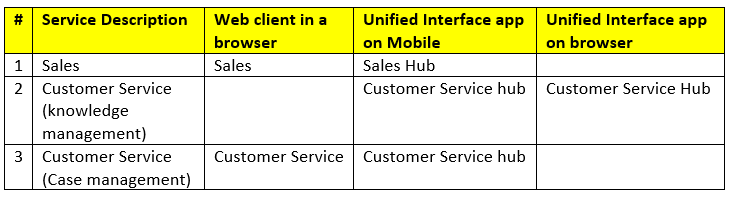
Microsoft has provided recommendation for the interface for some of the managed app based on performance results.

Table-2: App recommendation for best performance
 3.       Unified Interface – This is a new design framework applicable to all new Apps. It is created to  provide an “optimal viewing and interaction experience for any screen size, device or orientation”.
The new Sales Hub, Customer Service Hub and new mobile app are based on the Unified Interface. 

Here is how the new Customer Service Hub app dashboards looks like – (note – I am using the Custom time Frame to change the date range)
Fig-4: Tier-1 dashboard with Visual Filters

Fig-5: Tier – 1 Dashboard


The Case form – The unified interface changes can be better appreciated when we look at the form design changes in the Case form.

·        It has the new Timeline feature.
·        The tabs are now on the top – Summary / Details / ….
·        The time is now shown (16 D) in the business process flow stage
·        When clicking on the stage (example – Identify) it will show you the steps in that stage

Fig-6: The new Case form design

4.         Security – Apps can be secured by limiting the security roles that have access to the apps. 
Go to the Custom App and within the custom app go to Settings > My Apps.
Select the App you want to secure the access to and click on the “…” and select ‘Manage Roles’


In summary, some of the points to consider when designing with Apps.
1
  •       Create a new app from an existing managed app. This will copy all the components within the Managed apps
  •       Secure the access to the app and provide a user friendly url
  •       Follow the recommendation for performance from Microsoft
  •       Some of the new features like timeline view is only available in the unified interface app

Hope the above helps you to jump start using the new Apps within Dynamics 365. Do let me know if there are any new feature which you like or dislike. Thanks for reading.

Mihir Shah
365WithoutCode